
Playground
Before making a full-length animation, come to Playground when you want to experiment lightly — one image, one video clip, or a single voice line. Generate video, images, or voice instantly from a single prompt, and browse other creators' work and prompts too.
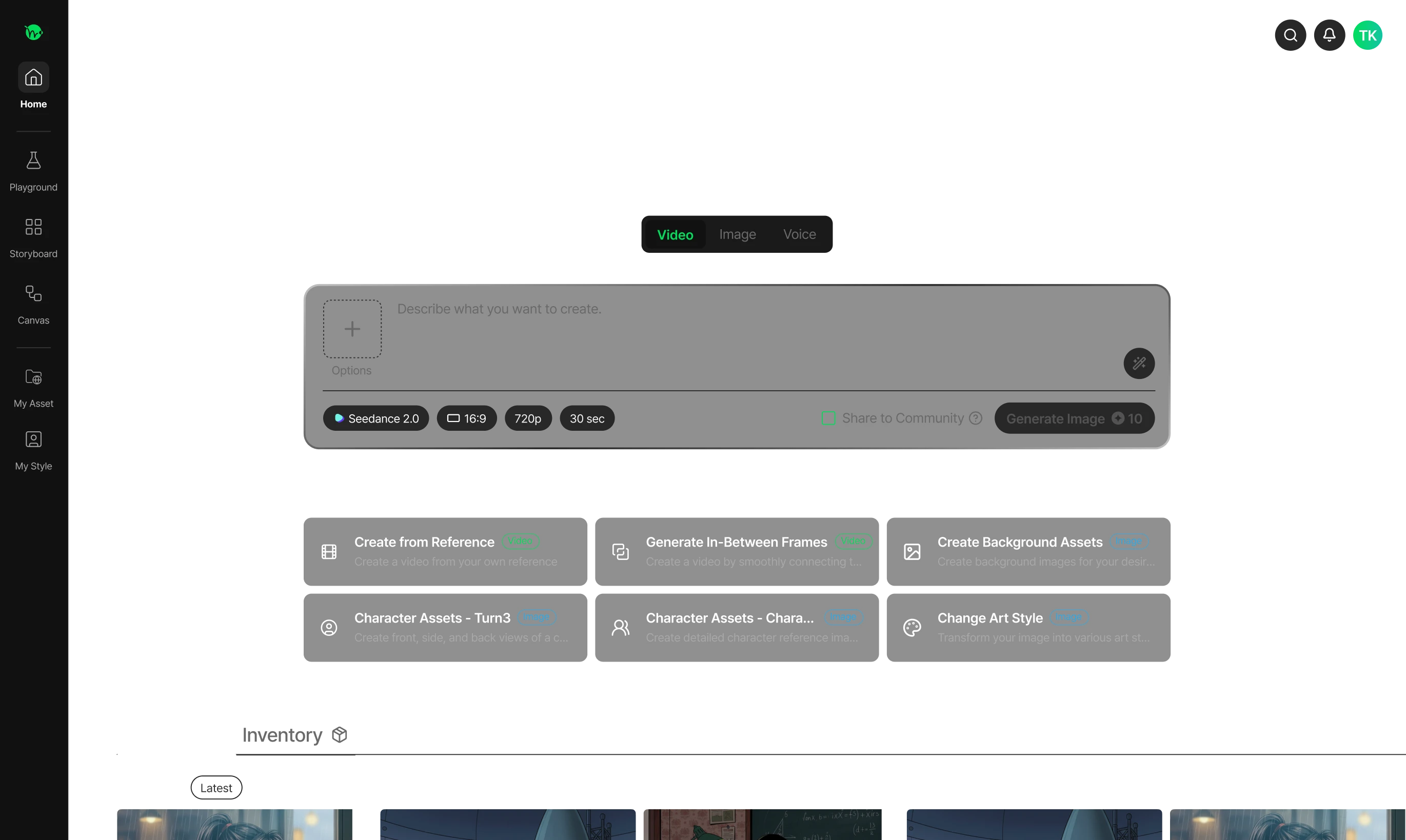
Screen layout
Video, Image, and Voice tabs
Pick the media type you want to create from the tabs at the top. The input box and options panel below automatically switch to match the selected tab.
Community and Inventory
Browse and reuse what other users are generating in real time, or instantly check your own past generation history.
Step-by-step guide
Follow these steps for the creation goal you have in mind.
Start with a template
Not sure where to start? Tap one of the 6 cards under ‘Get started with templates’ below the input box. The right model and settings are set up automatically for that purpose.
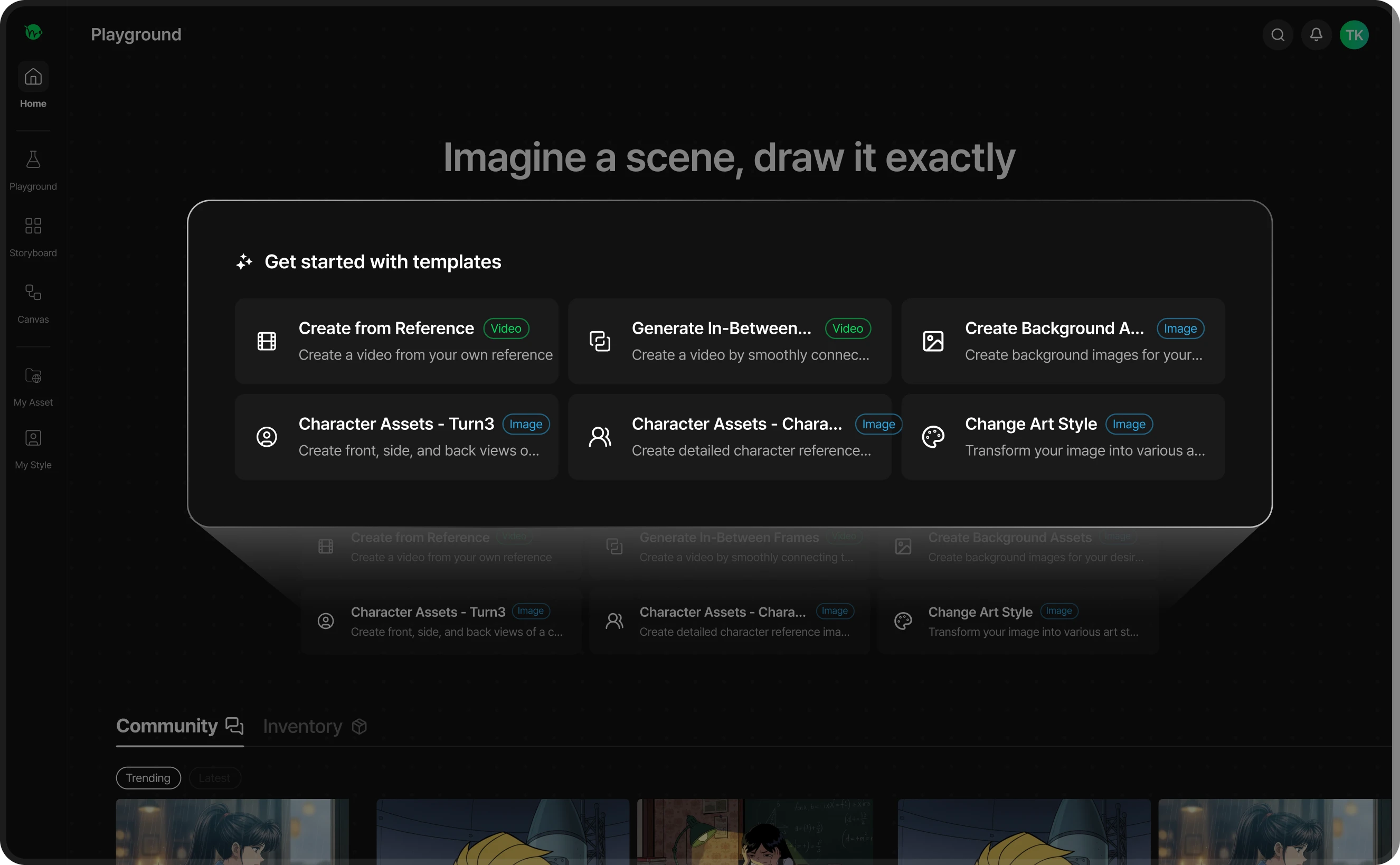
Generate from Reference
Create videos from various reference formats
Generate In-Between Frames
Smoothly connect images
Create Background Asset
Image showing the background scene
Character Asset - Turn3
Front, side, and rear images of the character
Character Asset - Character Sheet
Image with detailed character info
Change Art Style
Change only the art style of your image
Make a video
The default way is to generate from a reference. Freely combine image, video, and audio as references, and AI creates a video that reflects their characters, composition, and mood. The number of references you can add depends on the model (e.g. up to 50 for Seedance 2.5).
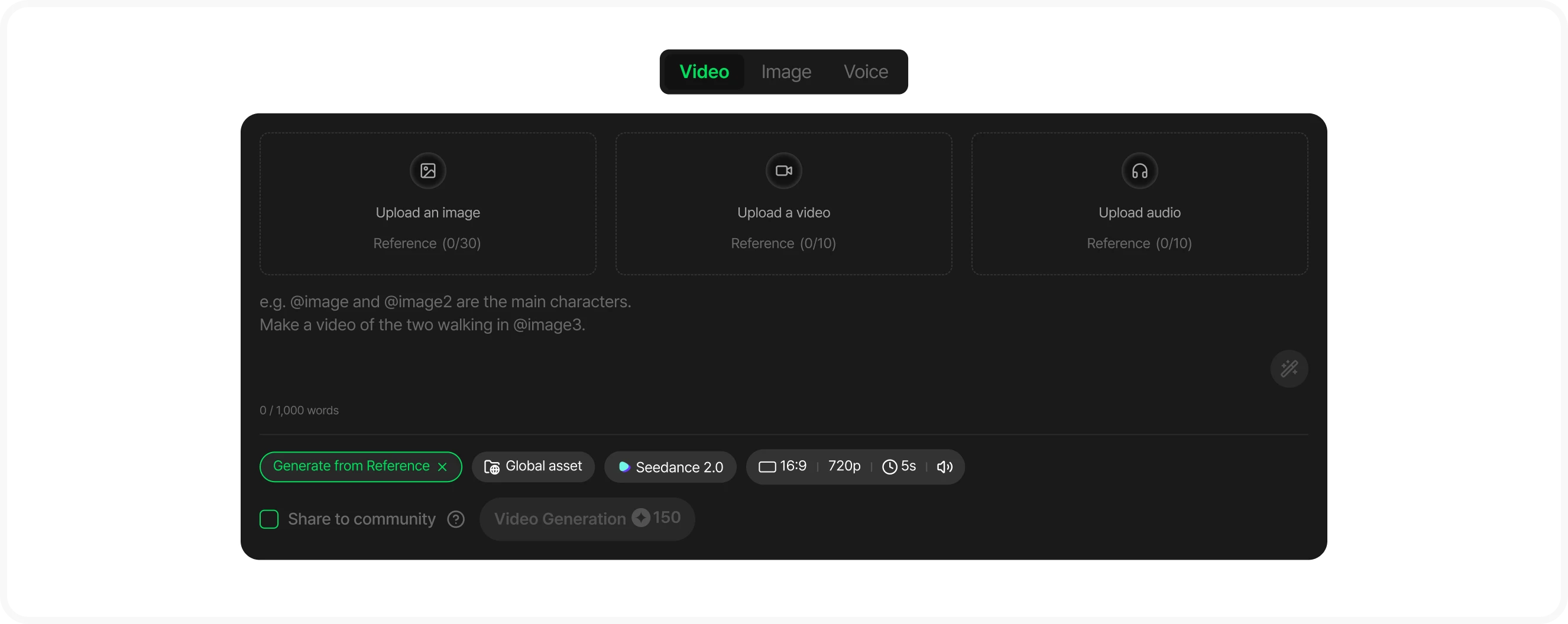
- You can enter text only with no reference, or add one image to bring that scene to life.
- In-between frame generation connects two images — a ‘first frame’ and a ‘last frame’.
- Choose aspect ratio, length, and resolution in the options, and turn on audio generation too if the model supports it.
- Credits vary depending on the resolution × length combination.
Make an image
Pick a model in the Image tab and write your prompt. Generation model cards show feature tags and credits together, so you can compare and choose. Pick the ToonXL model to unlock style selection for Toonkit's own model — apply Toonkit's default presets, styles shared by other users, or a style you trained yourself (paid plan).
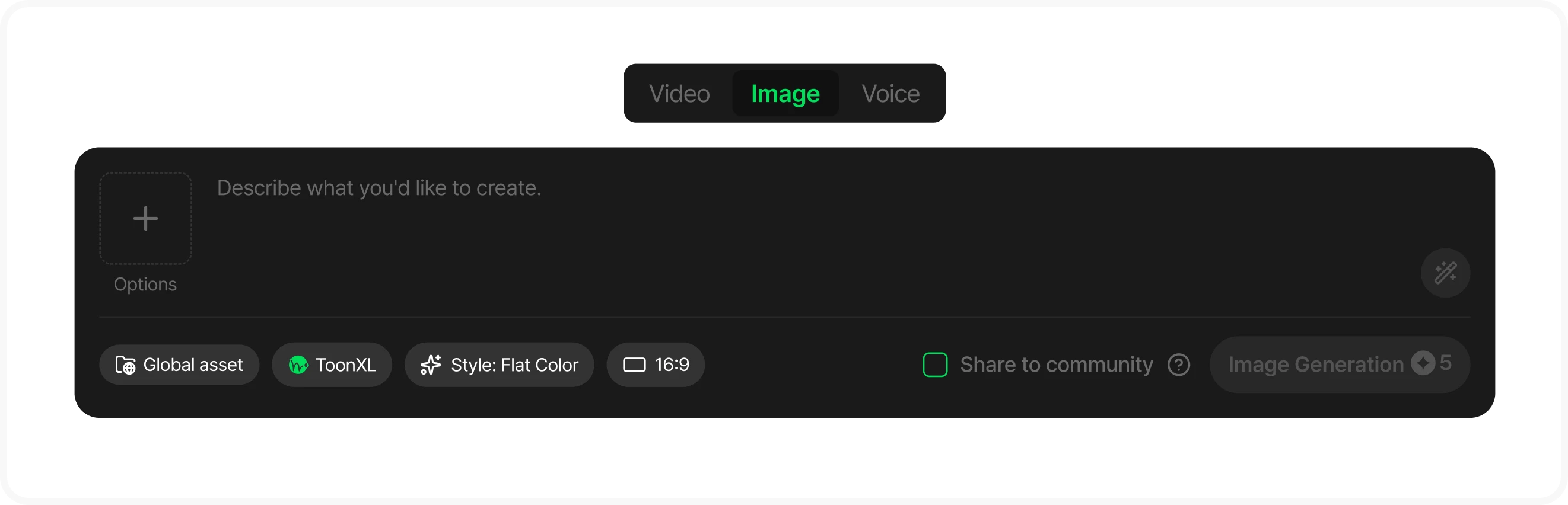
ToonXL (Toonkit's trained model)
RecommendedToonXL is Toonkit's own trained model. It's optimized for animation production, and you can pick from a variety of style presets to create images in the look you want.
Make a voice
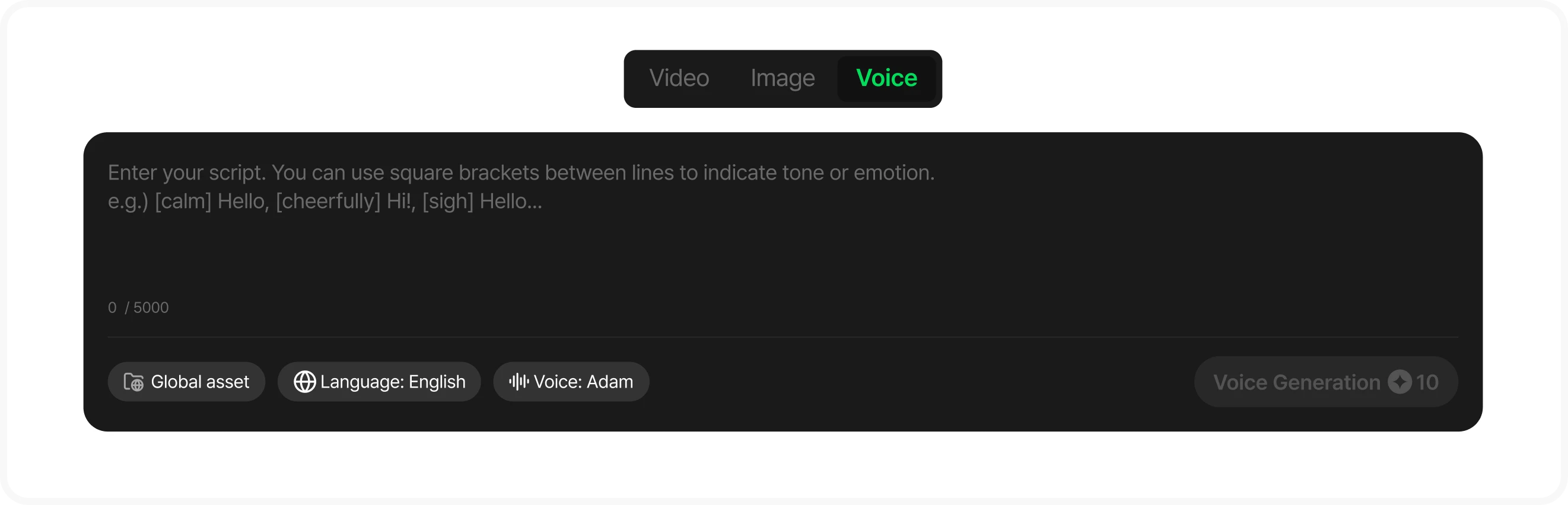
Write your script in the Voice tab (up to 5,000 characters) and pick a voice in voice selection. Filter by type, gender, and age, and preview before you commit. Generated audio plays instantly with a waveform player in your inventory.
When you're stuck on a prompt — free enhancement
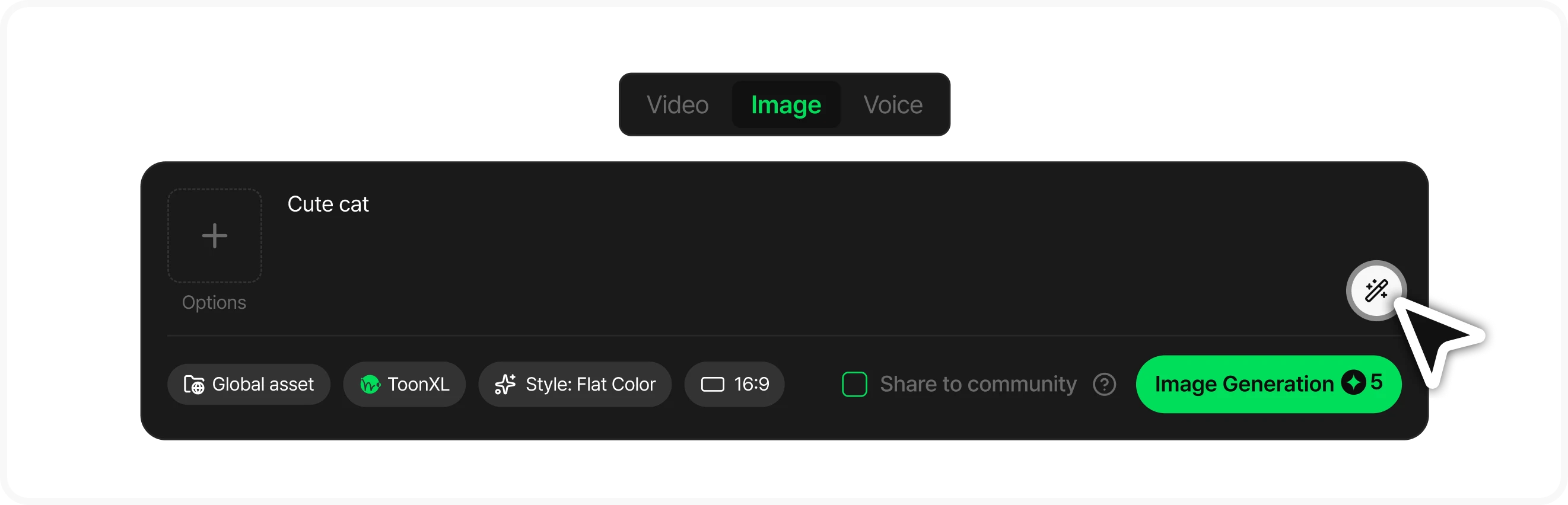
Tap the wand button in the input box and AI refines your prompt into a form that generates better results. This feature is free. Compare the original and the enhanced version, then choose ‘Apply enhanced prompt’ or ‘Revert’.
a flying cat, anime style
A majestic, fluffy white cat with golden wings soaring gracefully through a vivid blue sky with puffy cinematic clouds, retro 90's cell anime style, warm sunlight glares.
Put your results to use
Once generation starts, a card appears in your gallery inventory with a progress indicator. Here's what you can do with a finished result.
Use as a reference image
Feed a result straight into your next generation.
Video and audio can be used as references too.
Save to Global Asset
Keep it in your Toonkit library and reuse it in Playground, Storyboard, and Canvas.
Download
Save it as a file.
Copy template
Found something you like in the community? One button pulls in its prompt, model, and options so you can try the exact same setup.
Share to the community
Check ‘Share to community’ before you generate, and your result and the creation process are shared to the community tab. Change your mind? You can undo the share from your inventory at any time. You can also add other users' work to your own inventory, or report anything inappropriate.
Follow the community guidelines
Sharing prompts or synthesized results that are violent, harmful, or infringe on someone else's copyright may be restricted,
and repeated violations can permanently restrict your access to the service.
If generation fails
Check the error for a failed generation and tap ‘Regenerate’. Here are the most common causes.
| Reason | Solution |
|---|---|
| Content policy violation | Change the flagged wording in your prompt or reference image |
| Too many requests | Wait a moment and try again |
| Insufficient credits | Recharge your credits and try again |