Skip to content

Turn manga panels into AI video: use your artwork to create a moving preview

Choose memorable panels from your own manga and specify character or camera motion. Combine cropped artwork, reference-based generation, captions and editing to produce motion comics or short promotional videos. Explore related workflows: image to video and AI character creator.

By uploading an image or video, you agree to Toonkit’s Terms of Use and Privacy Policy and confirm that you are 18 years of age or older.

Direct one panel at a time, not an entire page.

Manga reading order differs from video timing. Prepare the panels as images, add only the motion needed, and connect the story through sequence and pauses. Explore related workflows: image to video and AI character creator. Connect text, reference images and generation nodes in Toonkit Canvas, and continue your creative workflow through conversation in AI tools connected to Toonkit MCP.

Crop the panel you want to animate

Prepare a panel where the character and background are readable. If speech bubbles interfere with motion, separate the generation image from the text for captions. Explore related workflows: image to video and AI character creator.

Start with a small movement

Start with a single movement such as eyes, hair or camera instead of complex action. Check the original composition while finding the right amount of motion. Explore related workflows: image to video and AI character creator.

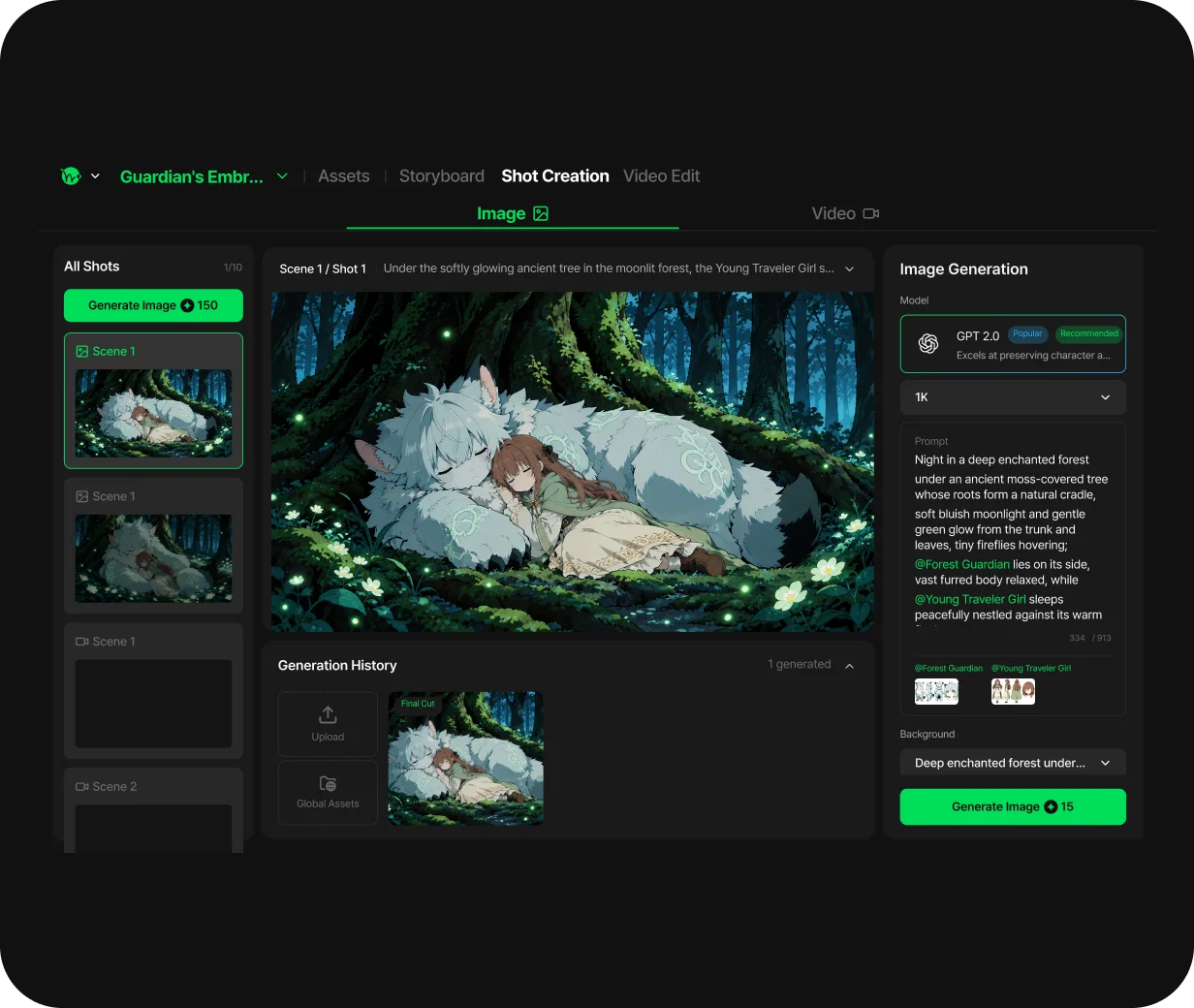
Generate scenes

Design timing between panels

Hold important expressions longer and give action a rhythm. Use the manga's panel order as a guide while adjusting duration for a natural video flow. Explore related workflows: image to video and AI character creator.

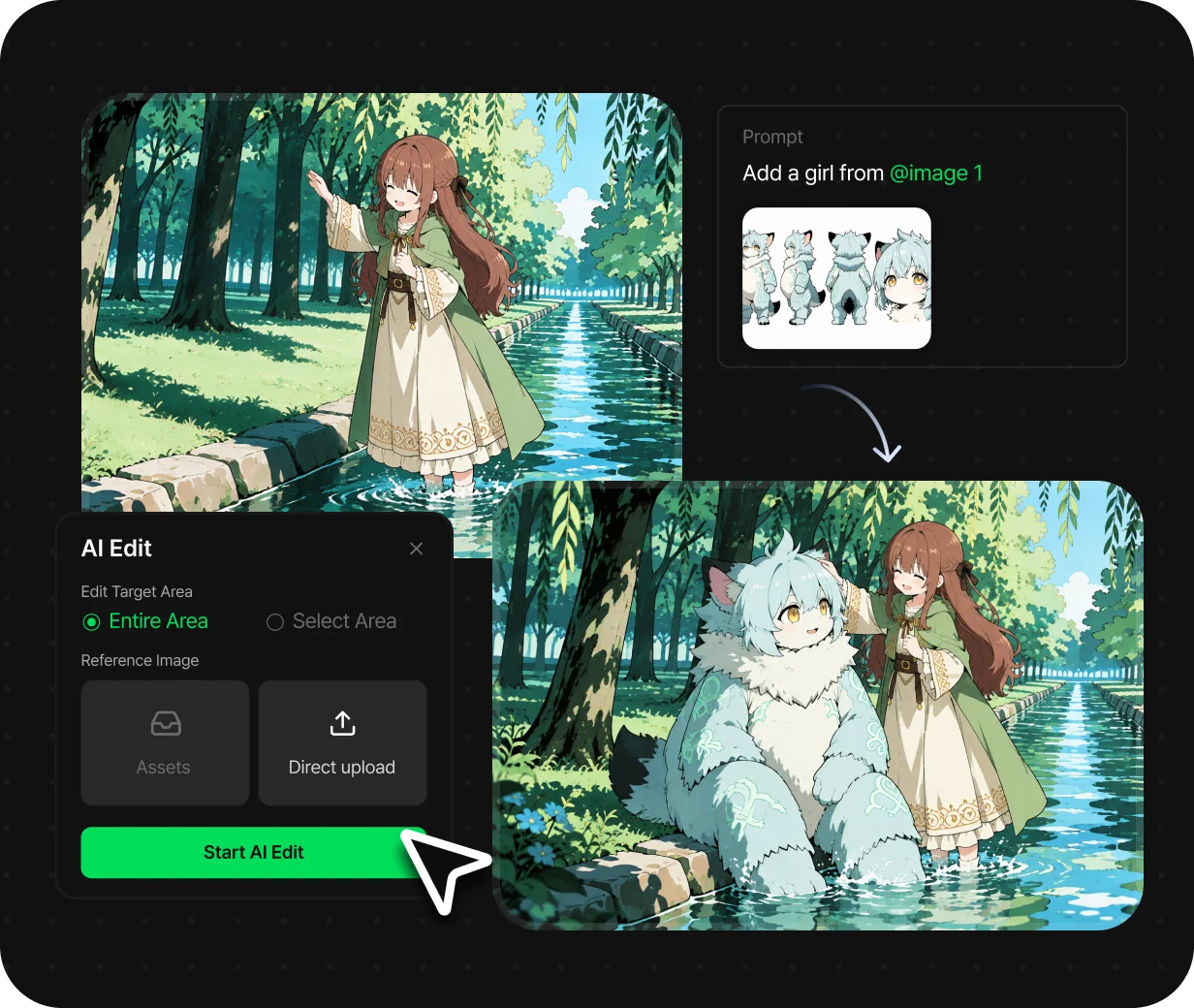
Revise the scenes that need it

Create a short introduction or announcement

Add the title and release details to animated panels and edit them into promotional material. Overlaying text later lets you adjust readability separately. Explore related workflows: image to video and AI character creator.

Turn manga panels into AI videos — 3 steps

STEP 1

Prepare panel images

Manually crop the panels and prepare text separately when needed. Check margins, aspect ratio and whether the moving character is cut off. Explore related workflows: image to video and AI character creator.

STEP 2

Generate video with an image and motion instructions

Choose an image-to-video model and load the panel. Specify motion and the composition to preserve, such as hair moving while the camera stays fixed. Explore related workflows: image to video and AI character creator.

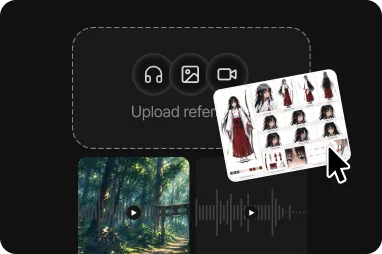
Upload references
STEP 3

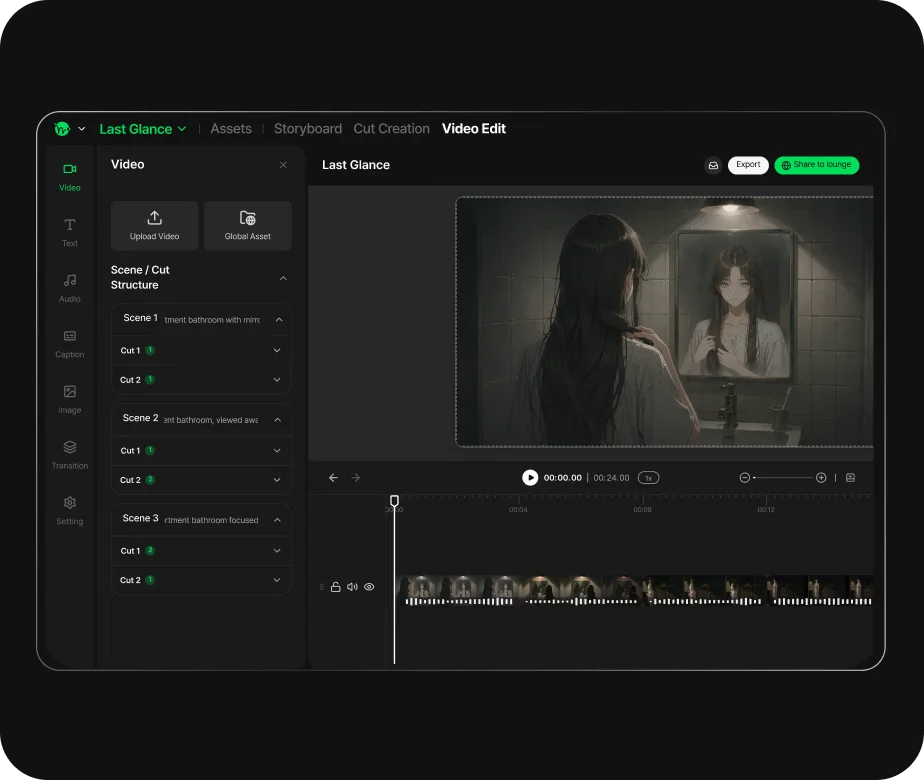
Edit multiple shots

Arrange the selected videos and adjust duration and transitions. If adding dialogue or sound effects, match reading time to the visual rhythm. Explore related workflows: image to video and AI character creator.

Export the completed AI film

Why use Toonkit for turning manga panels into AI videos?

Both image presentation and time to read dialogue matter when adapting manga to video. Organize the artwork as input and review motion separately from caption timing. Explore related workflows: image to video and AI character creator.

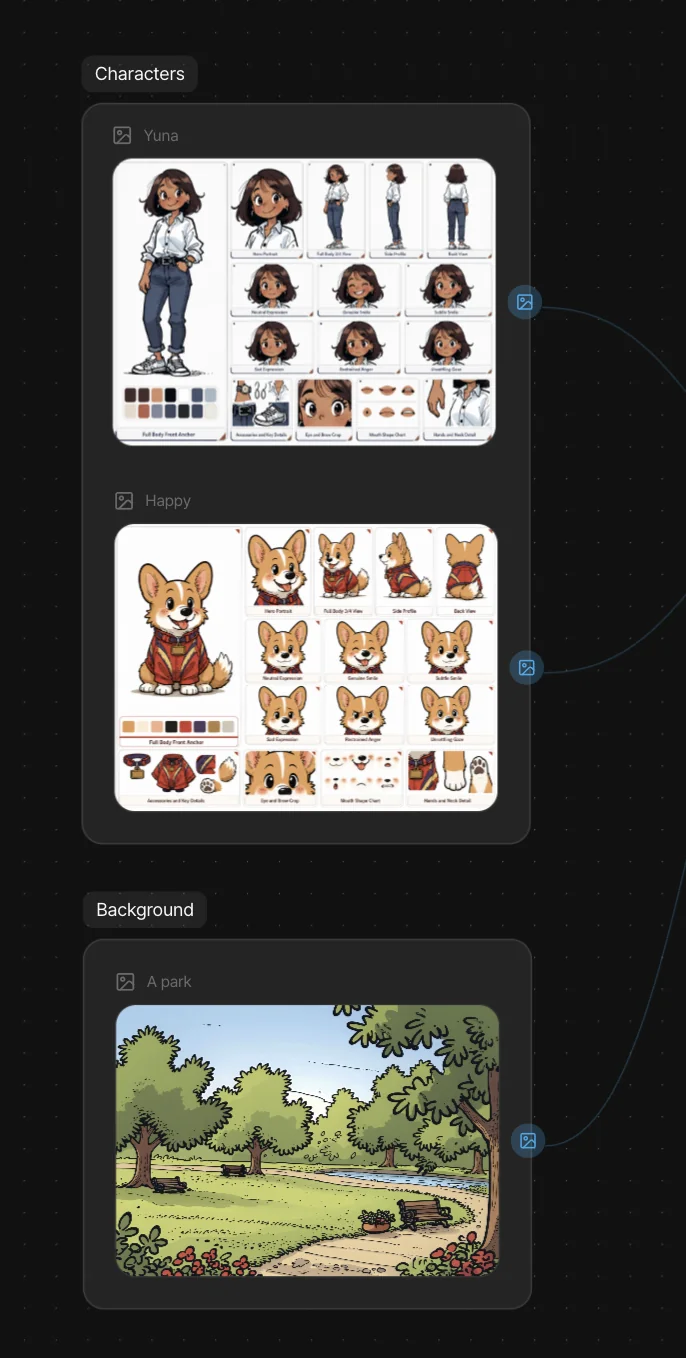
Input interface with character, animal and background reference images

Prepare your artwork as reference material

Crop the panels into clear character and background images. Review the input references and remove unnecessary text or margins before generation. Explore related workflows: image to video and AI character creator.

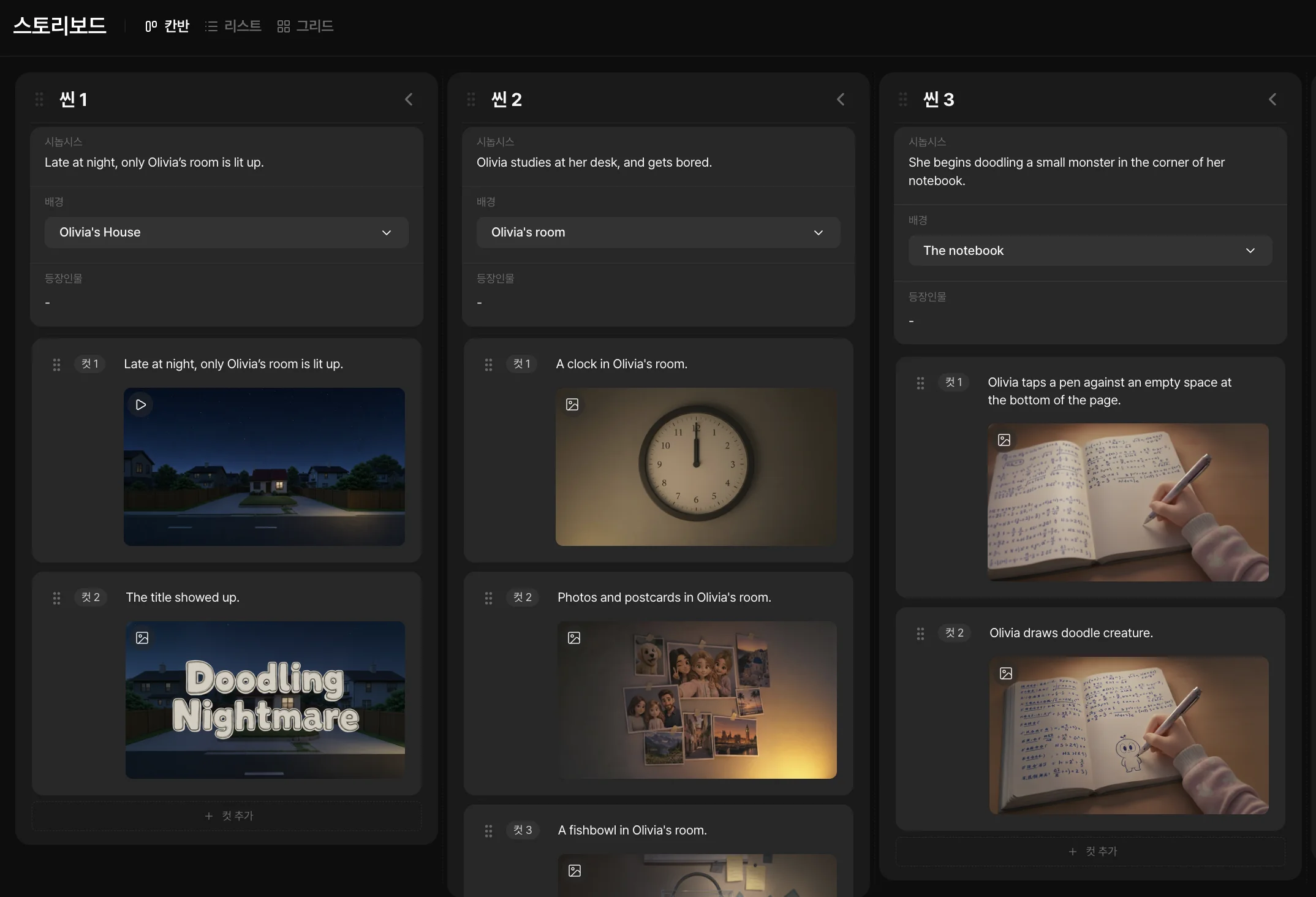
Storyboard with descriptions and images arranged by shot

Plan the order of your highlights

Arrange shots in the storyboard to decide where to begin. Before adapting the entire work, review a sequence focused on the scenes you want to introduce. Explore related workflows: AI storyboard and text to video.

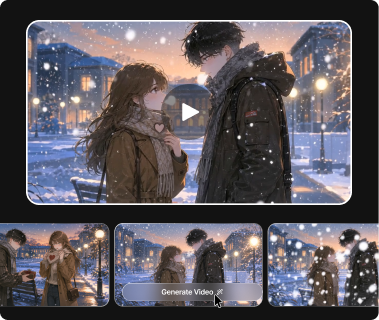
Snowy city scene and generated video candidates

Compare scenes with added motion

Decide whether the character, background or camera should move and review the generated shots. Narrow the instructions if motion is excessive, then choose results that fit the artwork. Explore related workflows: image to video and AI character creator.

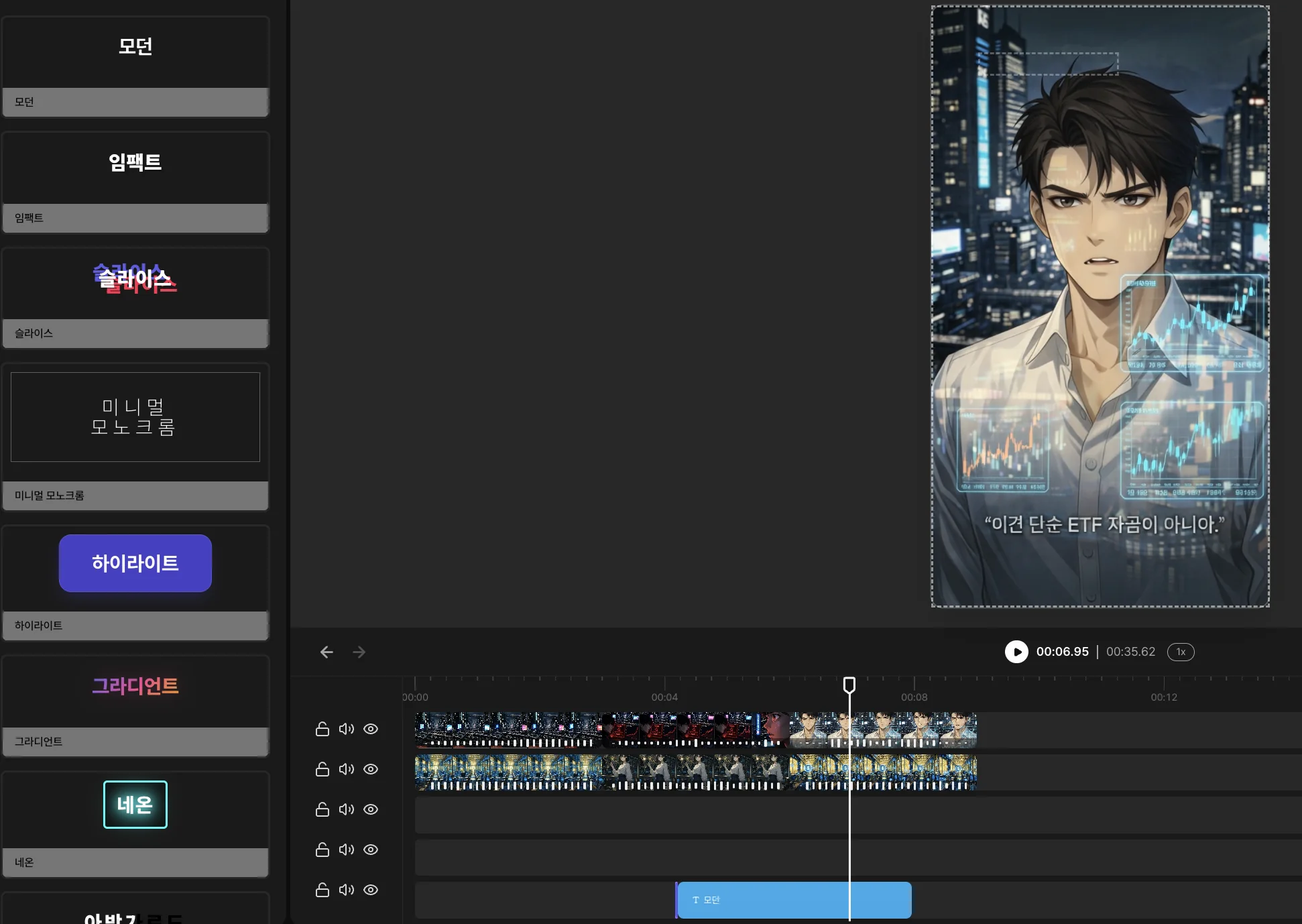
Editing interface for captions and aspect ratio

Adjust dialogue as captions

Handle text separately from video generation and adjust caption position and duration in editing. Match reading speed to visual changes so even a short video is clear. Explore related workflows: image to video and AI character creator.

Frequently asked questions

Can I upload a whole manga page?

This method requires manually cropping the panels you want and loading them as images. It does not assume automatic page splitting or reading-order detection. Explore related workflows: image to video and AI character creator.

Can I try black-and-white manga?

You can try generating video from the image, but lines and tones may change. Check a short shot to see whether the result suits your intended finish. Explore related workflows: image to video and AI character creator.

Will speech-bubble text stay unchanged?

Text can distort during generation. For readability, prepare it separately and overlay it during video editing. Explore related workflows: image to video and AI character creator.

Will the character's art style stay the same?

You can aim to follow the input image, but faces and line work may change. Compare with the original panel and adjust motion or input images. Explore related workflows: image to video and AI character creator.

Is this different from drawing manga?

This page explains turning existing panels into video assets. See image to video for a general workflow starting from still images.

Explore more Toonkit tools