Seedance 2.5: create AI animation up to 30 seconds with multiple references
Plan an AI animation with a beginning and ending in up to 30 seconds with Seedance 2.5. Work with up to 30 image, 10 video and 10 audio references and 1080p output. Prepare blocking and camera paths with Toonkit’s 3D Dummy and canvas.
By uploading an image or video, you agree to Toonkit’s Terms of Use and Privacy Policy and confirm that you are 18 years of age or older.
How do you plan a 30-second story with Seedance 2.5?
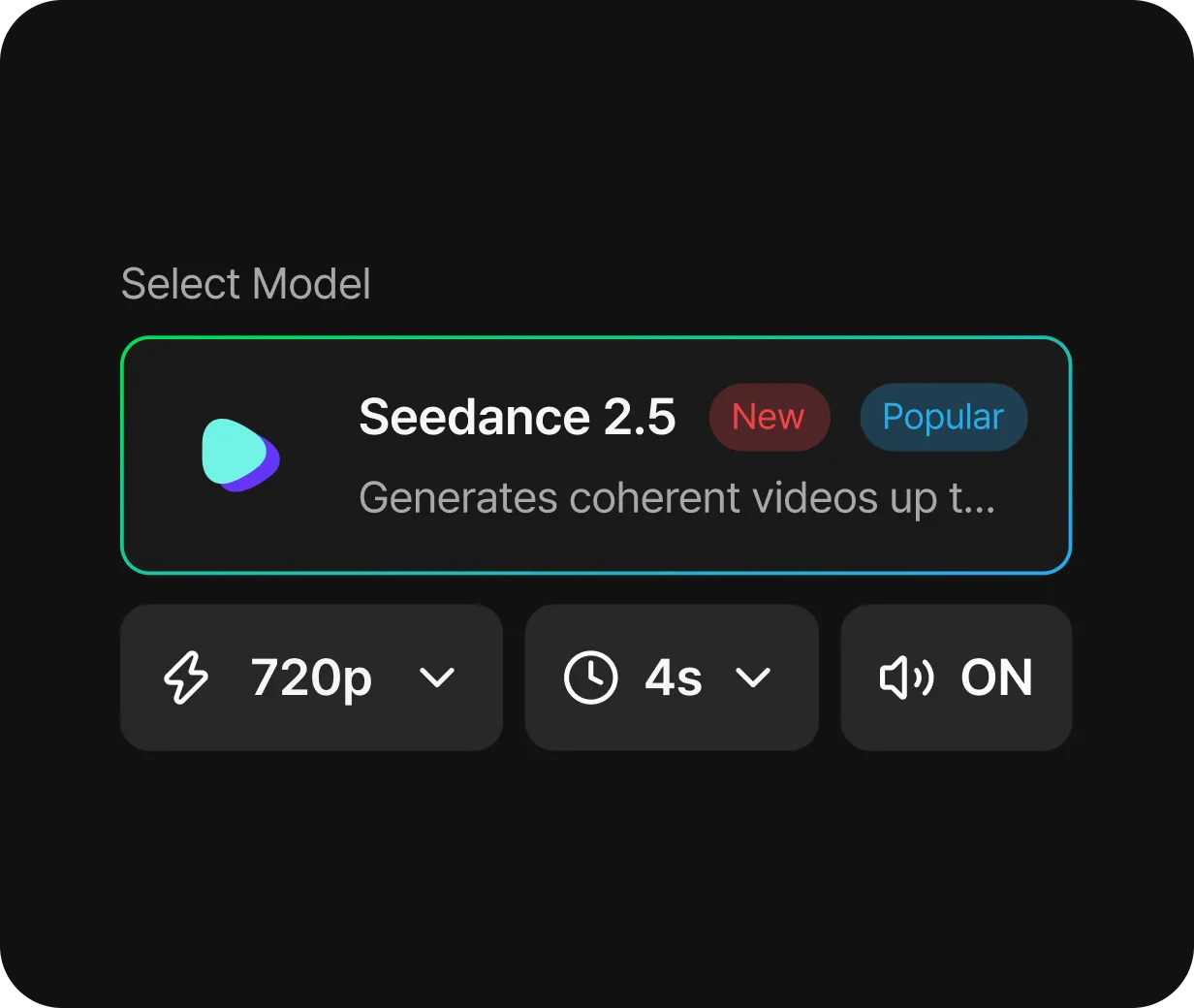
Seedance 2.5 is ByteDance’s joint video-and-audio model, officially released on July 31, 2026 and available in Toonkit. Toonkit supports 4–30 seconds at 480p, 720p or 1080p, with up to 30 image, 10 video and 10 audio references. Official ByteDance model information
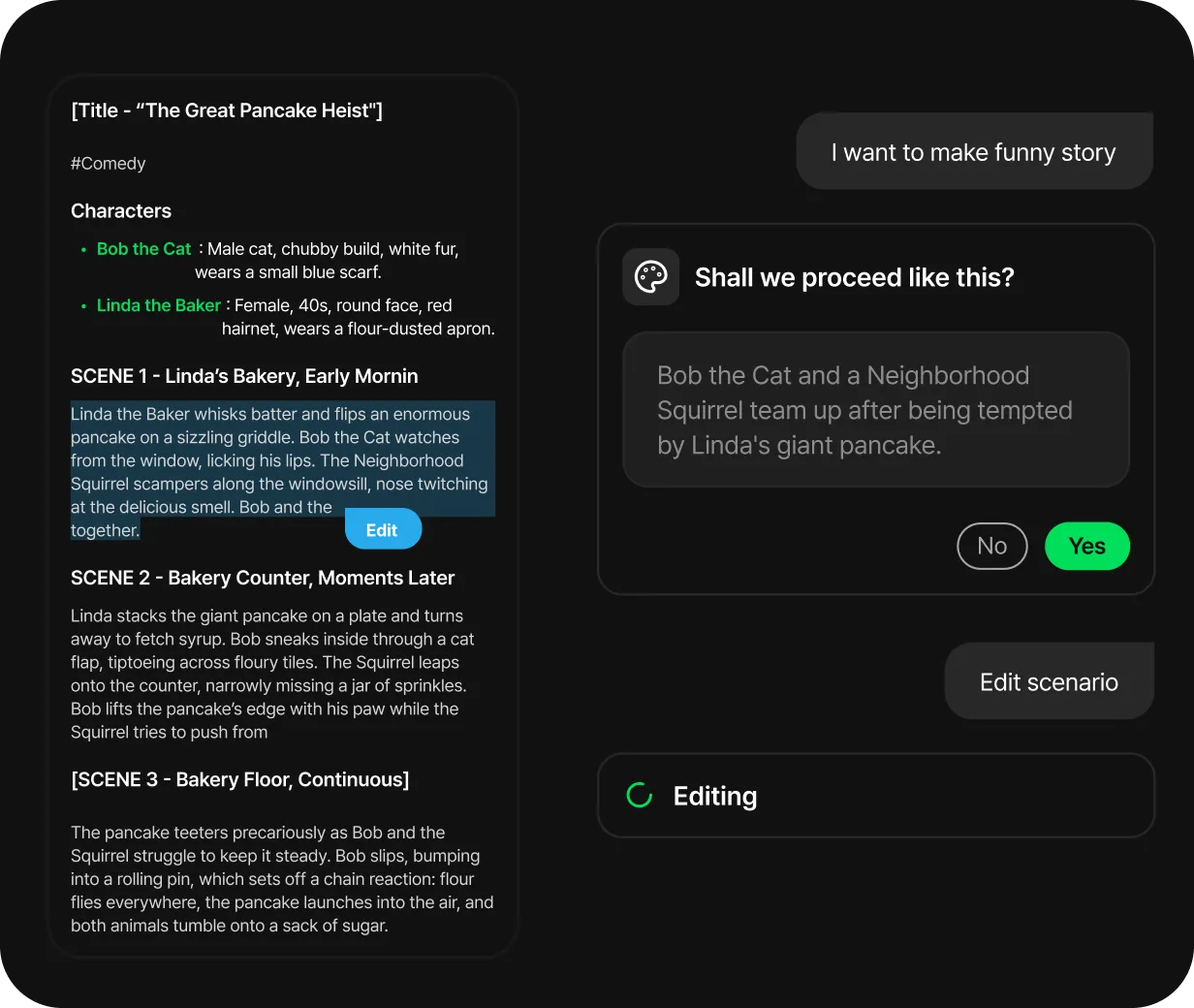
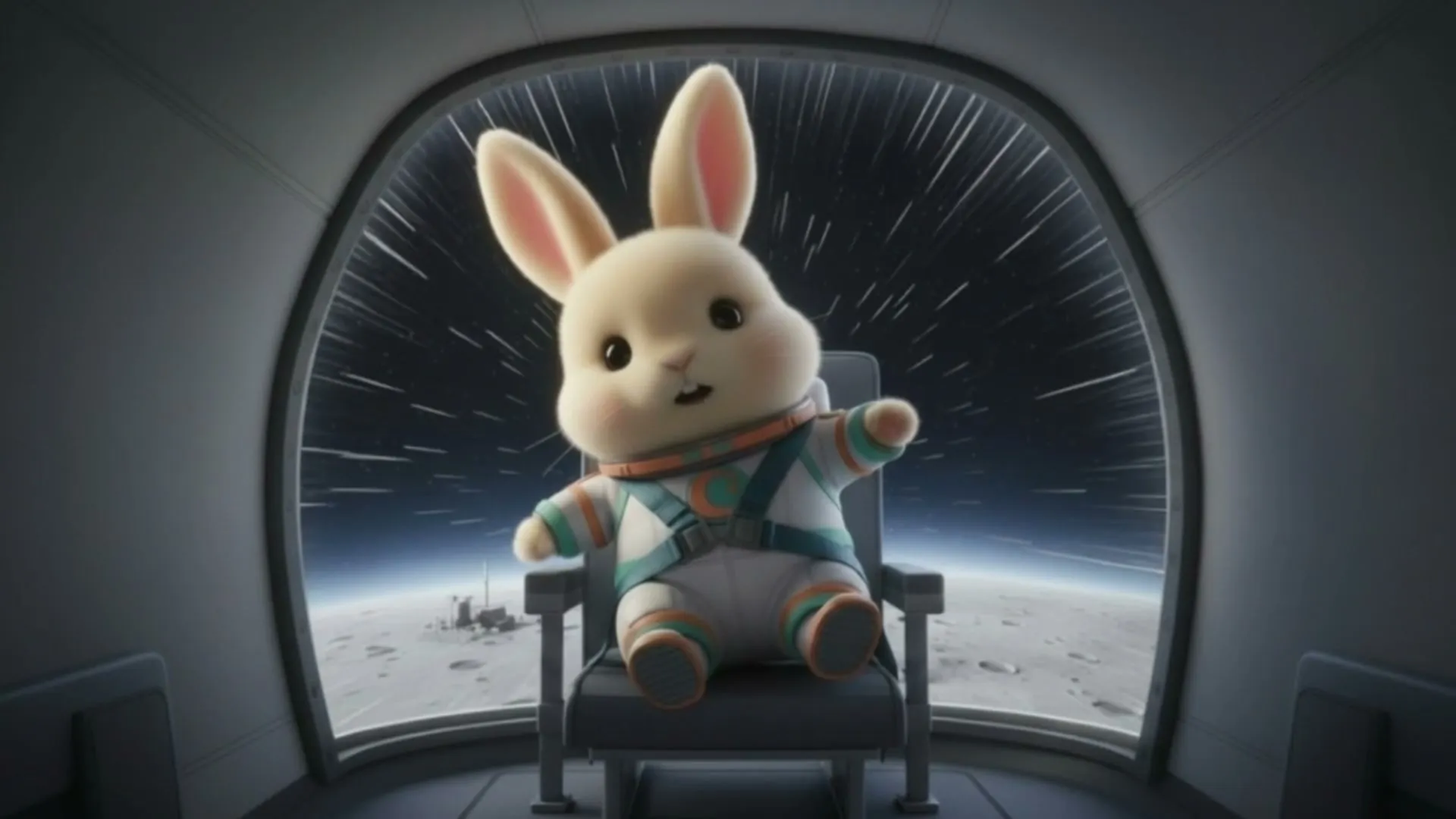
Allocate time to setup, change and resolution, then organize references by character and location. For example: ‘0–8s: a rabbit discovers a door; 8–20s: it enters a forest; 20–30s: it looks up at a glowing tree.’ These timings guide generation rather than guarantee frame-accurate edits. Review transitions and sound in the result. Connect text, reference images and generation nodes in Toonkit Canvas, and continue your creative workflow through conversation in AI tools connected to Toonkit MCP.
Up to 30 seconds, from setup to resolution
Choose 4–30 seconds per generation to describe a sequence of events. For a short fairy tale or product reveal, allocate time to arrival, discovery and reaction. Select 480p, 720p or 1080p in Toonkit and review character and background continuity at each transition.
Plan a cast and locations with 30·10·10 references
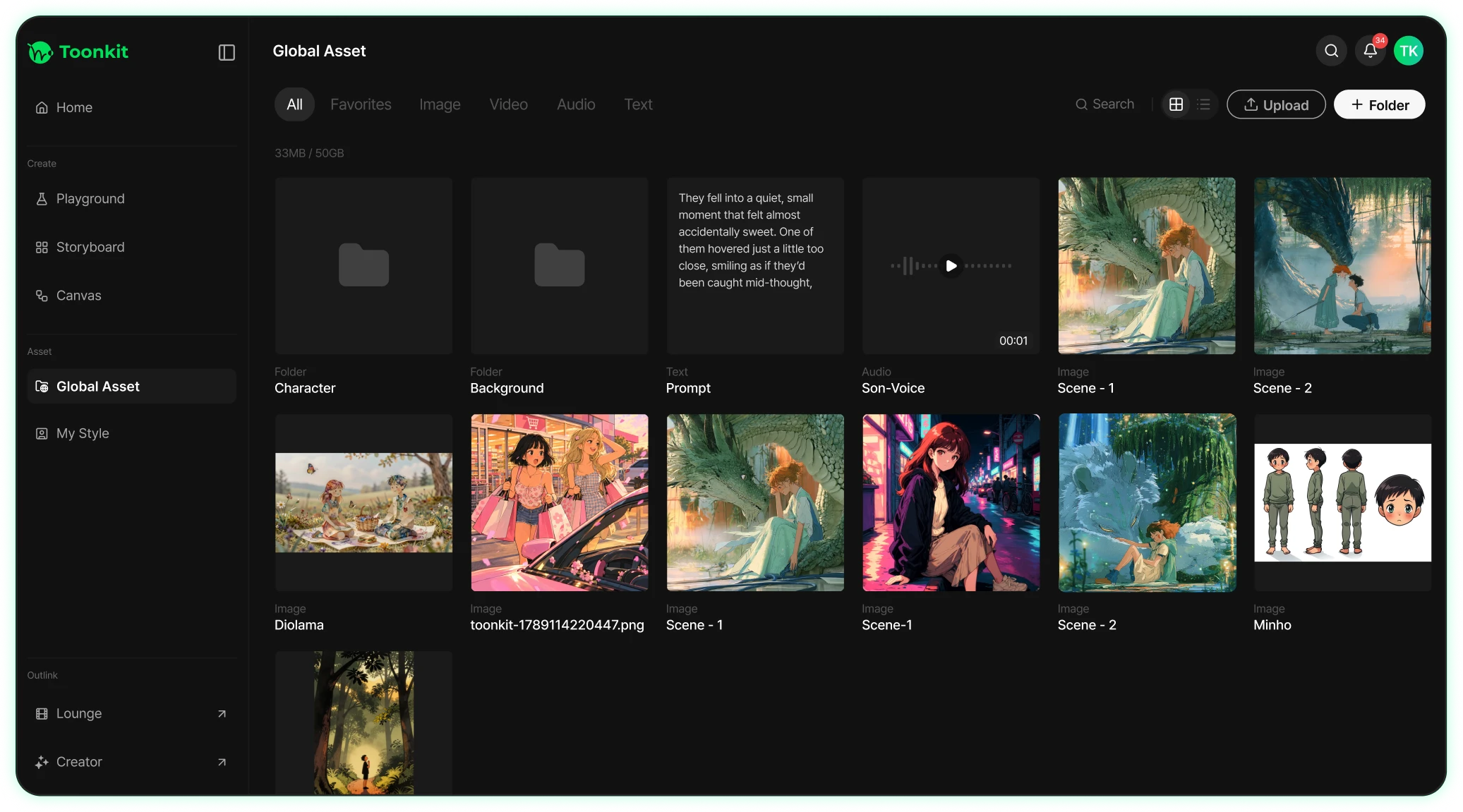
Use up to 30 images, 10 videos and 10 audio clips. Assign each reference a role: character appearance, location, motion or sound. File counts are separate from duration limits: combined video references and combined audio references may each total up to 30 seconds. Select the relevant excerpts before uploading.
Direct camera and blocking with 3D Dummy previz
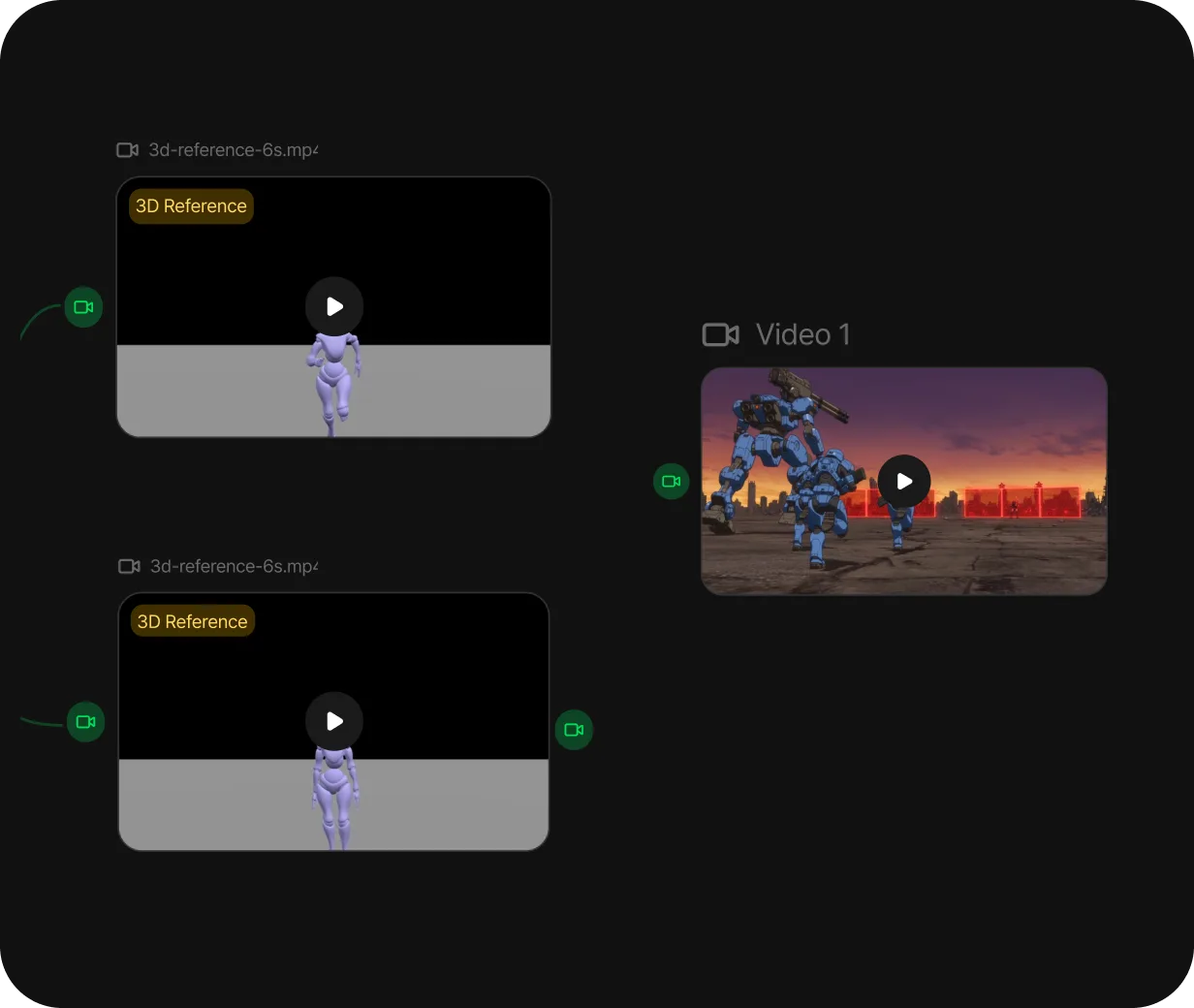
For compositions that are difficult to describe, place subjects and cameras in Toonkit’s 3D Dummy. Export previz as an image or video and pair it with a character-style image to communicate layout separately from appearance. Use this workflow to turn simple staging into a finished AI animation scene.
Start a scene from an audio reference
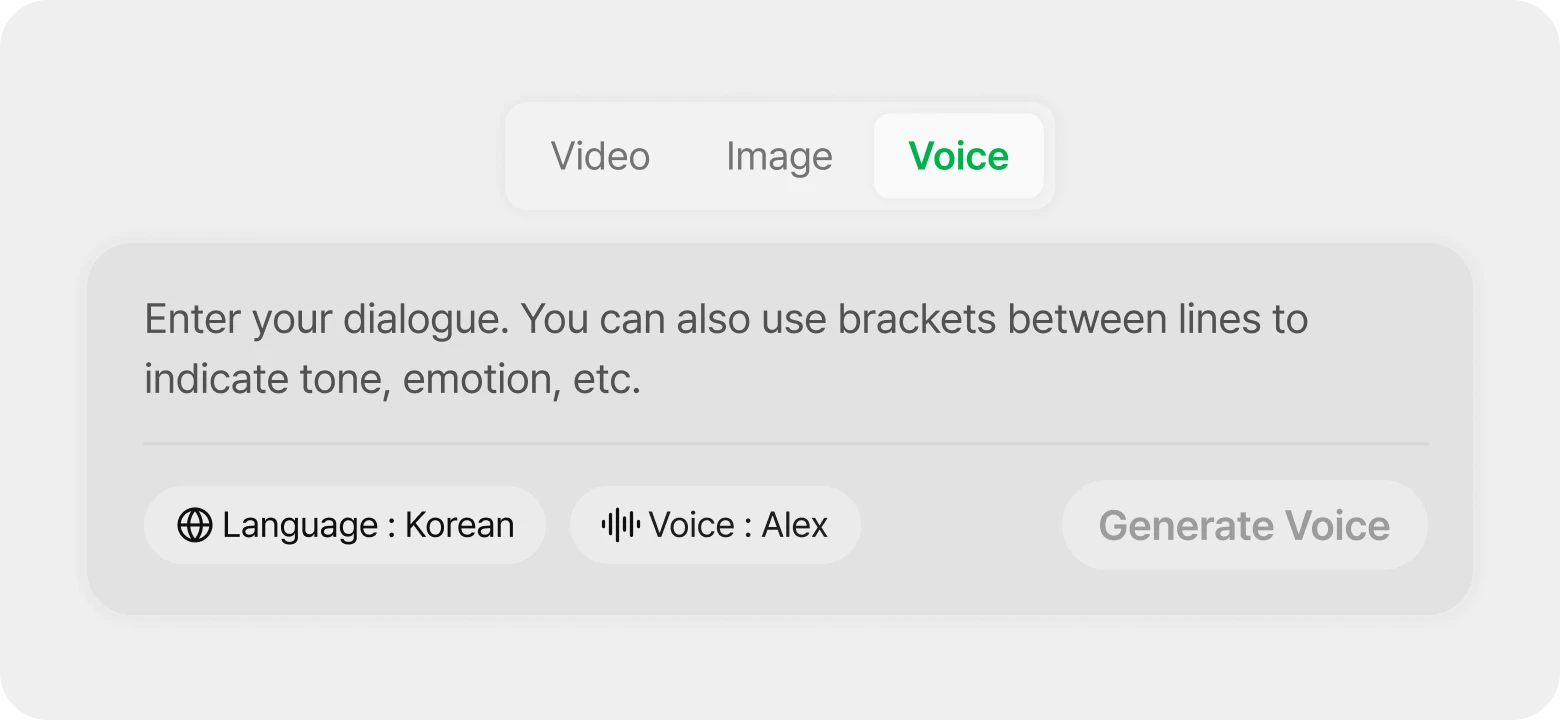
Seedance 2.5 reference generation accepts audio-only references without an image or video. Describe the desired subject, setting and action alongside the sound. Audio input does not guarantee exact beat or lip synchronization; review timing and speech after generation.
Seedance 2.5 — AI video creation steps
STEP 1
Plan the scene timing
Write the setup, change and ending within 4–30 seconds. Specify whether you want cuts or a continuous camera move. Explore related workflows: image to video and AI character creator.
STEP 2
Assign reference roles and prepare previz
Select references for cast, locations, motion and sound and describe each role. For spatial direction, add an image or video exported from 3D Dummy.
STEP 3
Choose Seedance 2.5 duration and resolution
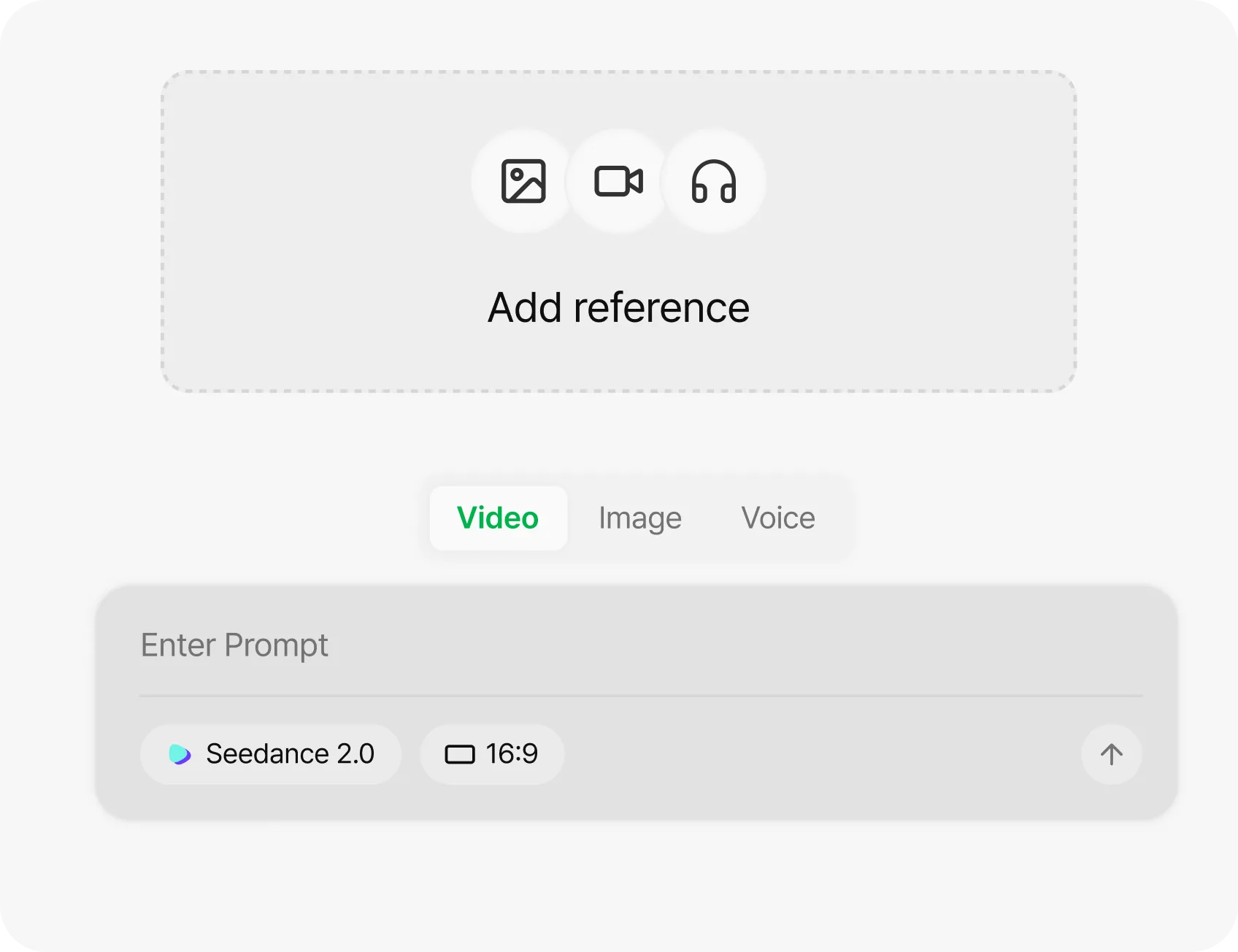
Select Seedance 2.5 and an input mode in the playground. Choose 4–30 seconds and 480p, 720p or 1080p, then review ratio, audio and estimated credits before generating. Explore related workflows: image to video and AI character creator.
STEP 4
Review transitions and sound across the sequence
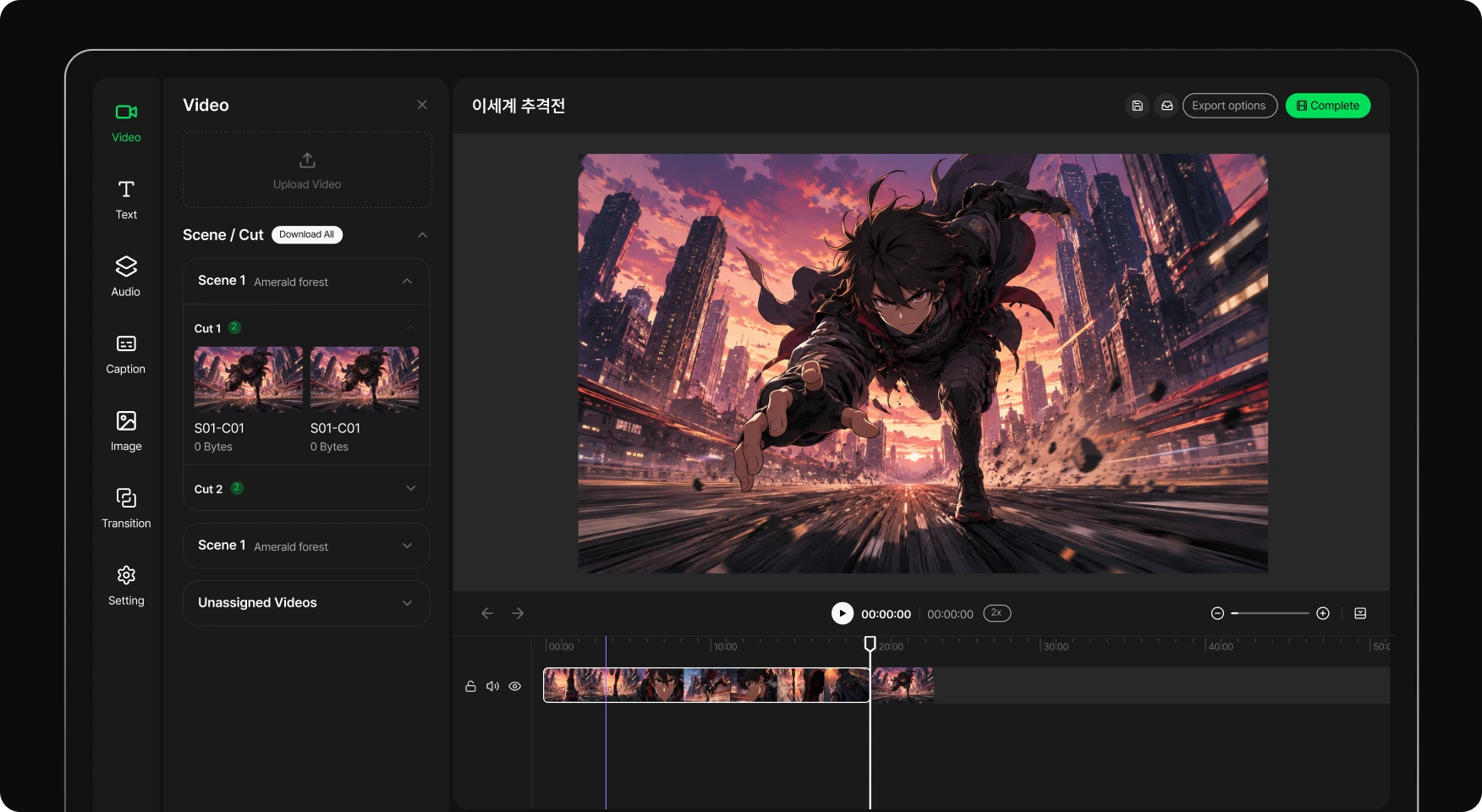
Watch the full result for character changes, spatial movement, transitions and sound continuity. Recreate problem sections as separate shots, assemble them in editing and export.
Why use Toonkit for Seedance 2.5 AI animation?
A 30-second sequence needs both organized references and planned direction. Use Toonkit’s asset library, 3D Dummy, canvas and MCP to prepare inputs for Seedance 2.5.
Plan a cast and locations with 30·10·10 references
Use up to 30 images, 10 videos and 10 audio clips. Assign each reference a role: character appearance, location, motion or sound. File counts are separate from duration limits: combined video references and combined audio references may each total up to 30 seconds. Select the relevant excerpts before uploading.
Direct camera and blocking with 3D Dummy previz
For compositions that are difficult to describe, place subjects and cameras in Toonkit’s 3D Dummy. Export previz as an image or video and pair it with a character-style image to communicate layout separately from appearance. Use this workflow to turn simple staging into a finished AI animation scene.
Review transitions and sound across the sequence
Watch the full result for character changes, spatial movement, transitions and sound continuity. Recreate problem sections as separate shots, assemble them in editing and export.
Prepare 3D staging and references with MCP
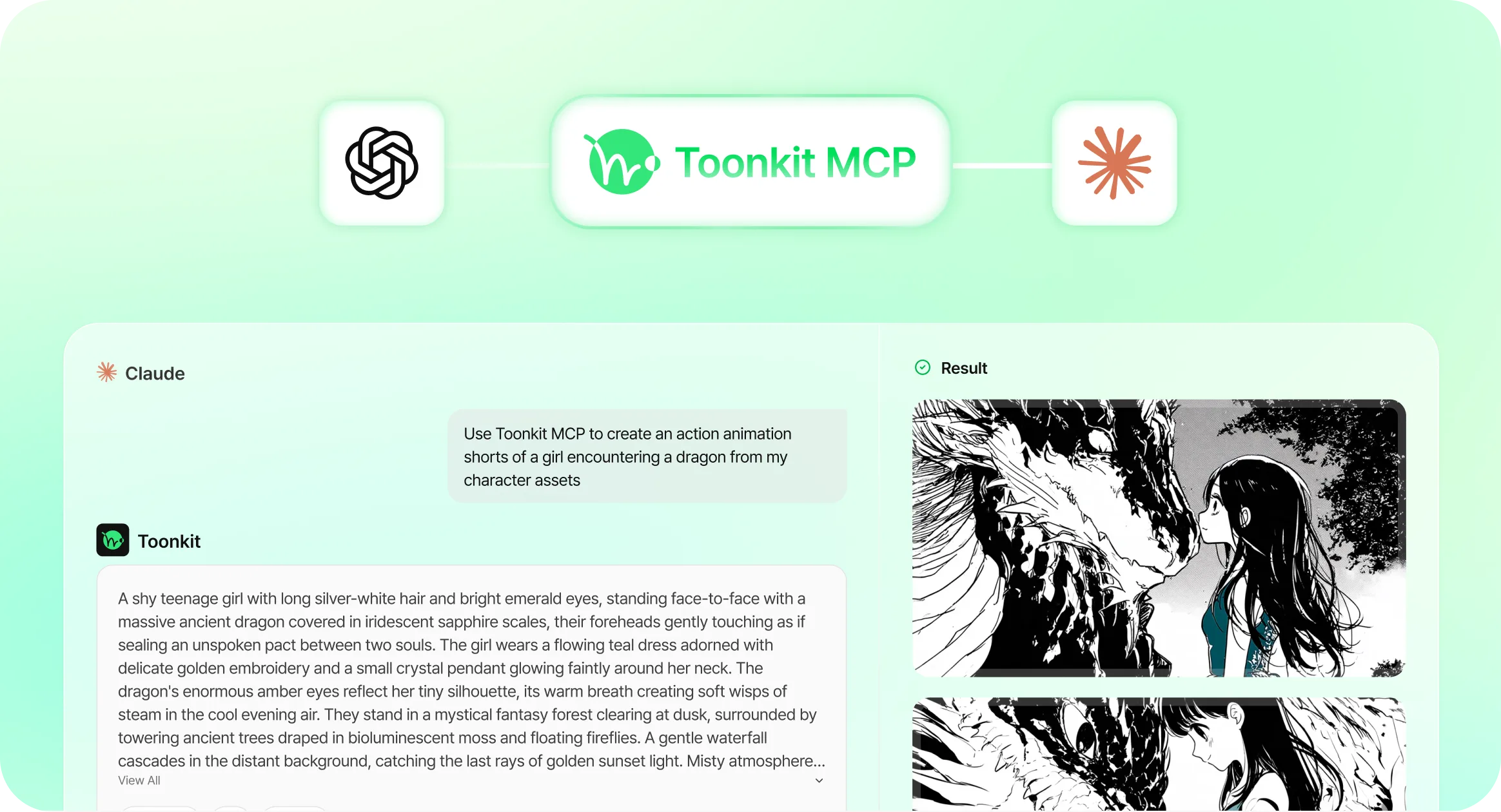
With the Toonkit canvas and 3D Reference editor open, ask a connected AI agent to adjust subjects, poses and cameras. Review the scene, export an image or video and use it as a Seedance 2.5 reference. Connect Toonkit MCP
Seedance 2.5 reference generation accepts audio-only references without an image or video. Describe the desired subject, setting and action alongside the sound. Audio input does not guarantee exact beat or lip synchronization; review timing and speech after generation.
How do you plan a 30-second story with Seedance 2.5?
Allocate time to setup, change and resolution, then organize references by character and location. For example: ‘0–8s: a rabbit discovers a door; 8–20s: it enters a forest; 20–30s: it looks up at a glowing tree.’ These timings guide generation rather than guarantee frame-accurate edits. Review transitions and sound in the result.
Which durations and resolutions does Toonkit support?
Current Seedance 2.5 settings offer 4–30 seconds at 480p / 720p / 1080p. Text/reference generation supports 16:9, 4:3, 1:1, 3:4, 9:16 and 21:9; image and first/last-frame modes derive the ratio from the input. Check the selector before generating.
How many references can I use?
Up to 30 images, 10 videos and 10 audio clips are supported. Video/audio references run 2–30 seconds each, with separate total limits of 30 seconds for video and audio. Check the selected model’s upload interface.
How do Seedance 2.0 and 2.5 differ?
In Toonkit, 2.0 offers 4–15 seconds at 720p; 2.5 offers 4–30 seconds at 480p/720p/1080p. Reference limits increase from 9 images, 3 videos and 3 audios to 30, 10 and 10. Compare duration, references and estimated credits.
How do I check the generation cost?
Credits depend on model, resolution, duration and video references. Check the estimate shown on the generation button rather than assuming a fixed per-second price or unlimited use.
Are all official editing and extension features in Toonkit?
Official model capabilities and Toonkit’s available controls differ. Use the modes and reference inputs currently shown. You can use images or videos exported from 3D Dummy as references; this does not imply raw 3D-file input or dedicated segment-editing and automatic-extension controls.
Turn an idea into a scene-by-scene storyboard and prepare characters and backgrounds for AI animation. Develop image shots into video with motion and camera direction, compare results and regenerate the scenes that need work. Edit shot order and duration to bring the story together.
Describe appearance, clothing, expression and style to create an AI character for your story. Use a selected result to explore poses and scenes, and organize different views in a character sheet. Carry your character images into storyboards and video generation as references.
Create AI video scenes from text, images and video references. Describe subjects, setting, motion and camera, then choose a suitable generation model and aspect ratio. Compare outputs, revise the shots that need work and edit for your purpose, from product presentations to creative films.
Start with a short idea or script and develop it into scene-by-scene AI animation. Define characters, backgrounds and style, then describe actions and camera movement for each shot. Review generated images and videos and refine scene order to turn your written story into an animated work.