Skip to content

Toonkit MCP: create images and AI animation through conversation

Describe a scene in Codex or Claude Code. Use Toonkit MCP to generate character images and videos, connect existing assets, and prepare direction in the canvas and 3D Reference editor.

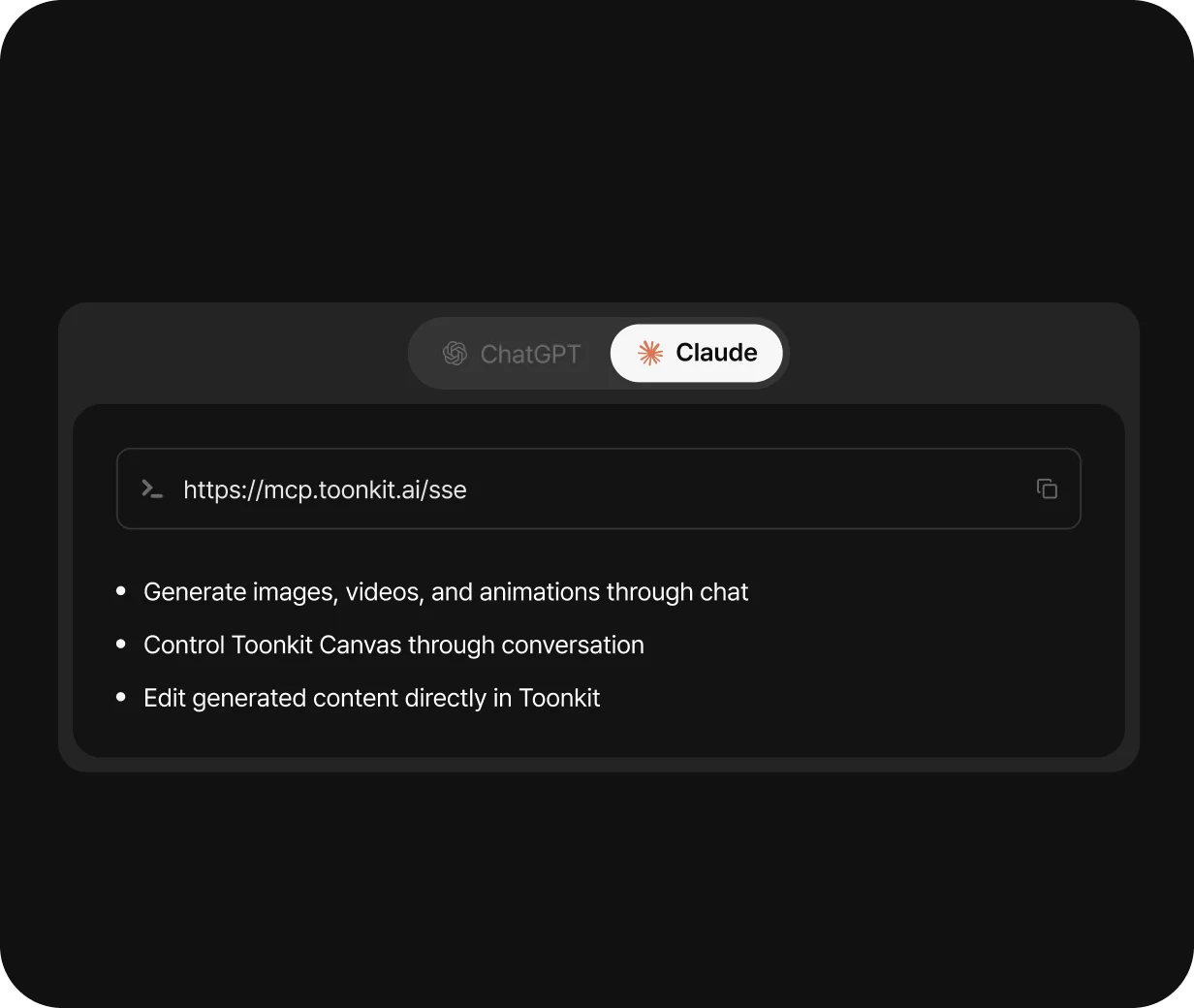
Connect Toonkit MCP

What can you do with Toonkit MCP?

MCP is a standard for connecting AI agents to external tools. Toonkit MCP lets an agent use your connected account’s image, video and voice generation and canvas tools through conversation.

Describe which character traits to preserve and what to change, or ask the agent to connect references and generation nodes. Review and edit results in Toonkit. Installation commands and account authentication are covered in the connection guide. Connect text, reference images and generation nodes in Toonkit Canvas, and continue your creative workflow through conversation in AI tools connected to Toonkit MCP.

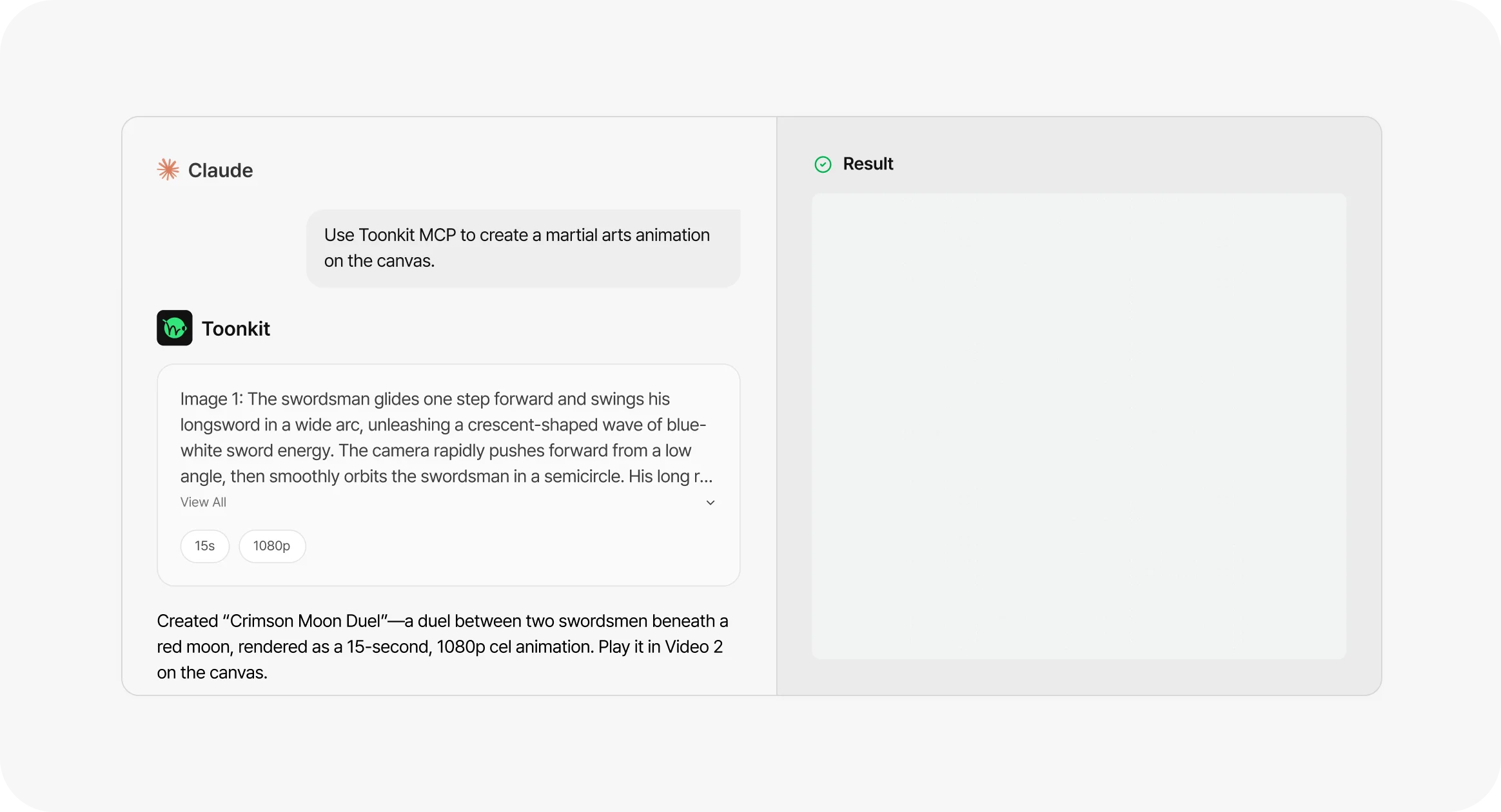
Describe a scene and generate images or video

Describe appearance, expression, setting and camera in conversation. The agent can check model inputs before creating the scene. Review the result and request changes to develop the idea further. Explore related workflows: AI storyboard and text to video.

Connect Toonkit MCP
Continue with existing characters and assets

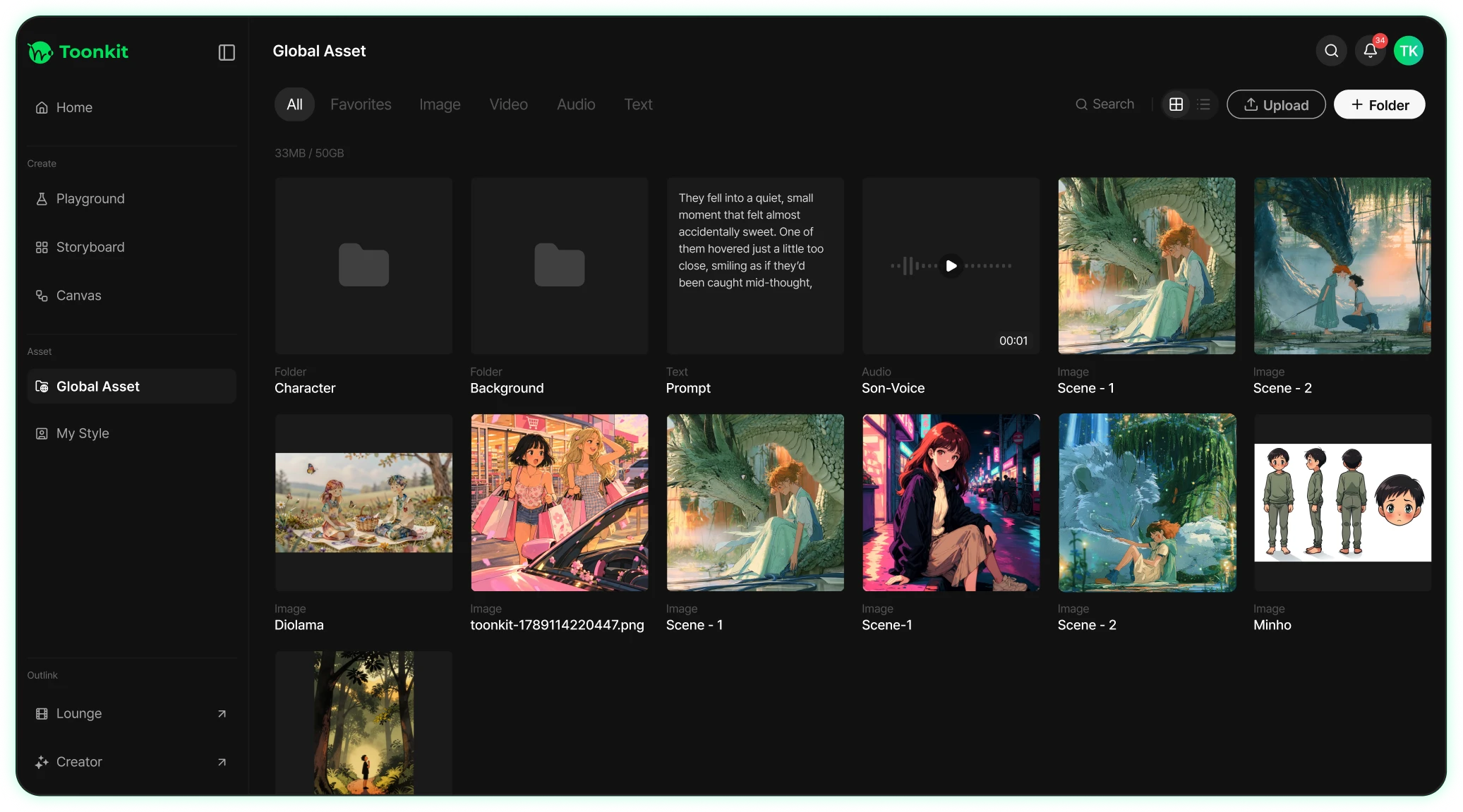
Start from an existing image or previous result. Specify the appearance to preserve and the action to change. You can also ask the agent to find and connect assets instead of preparing every reference again. Explore related workflows: image to video and AI character creator.

Connect Toonkit MCP
Asset library with images, videos and character sheets

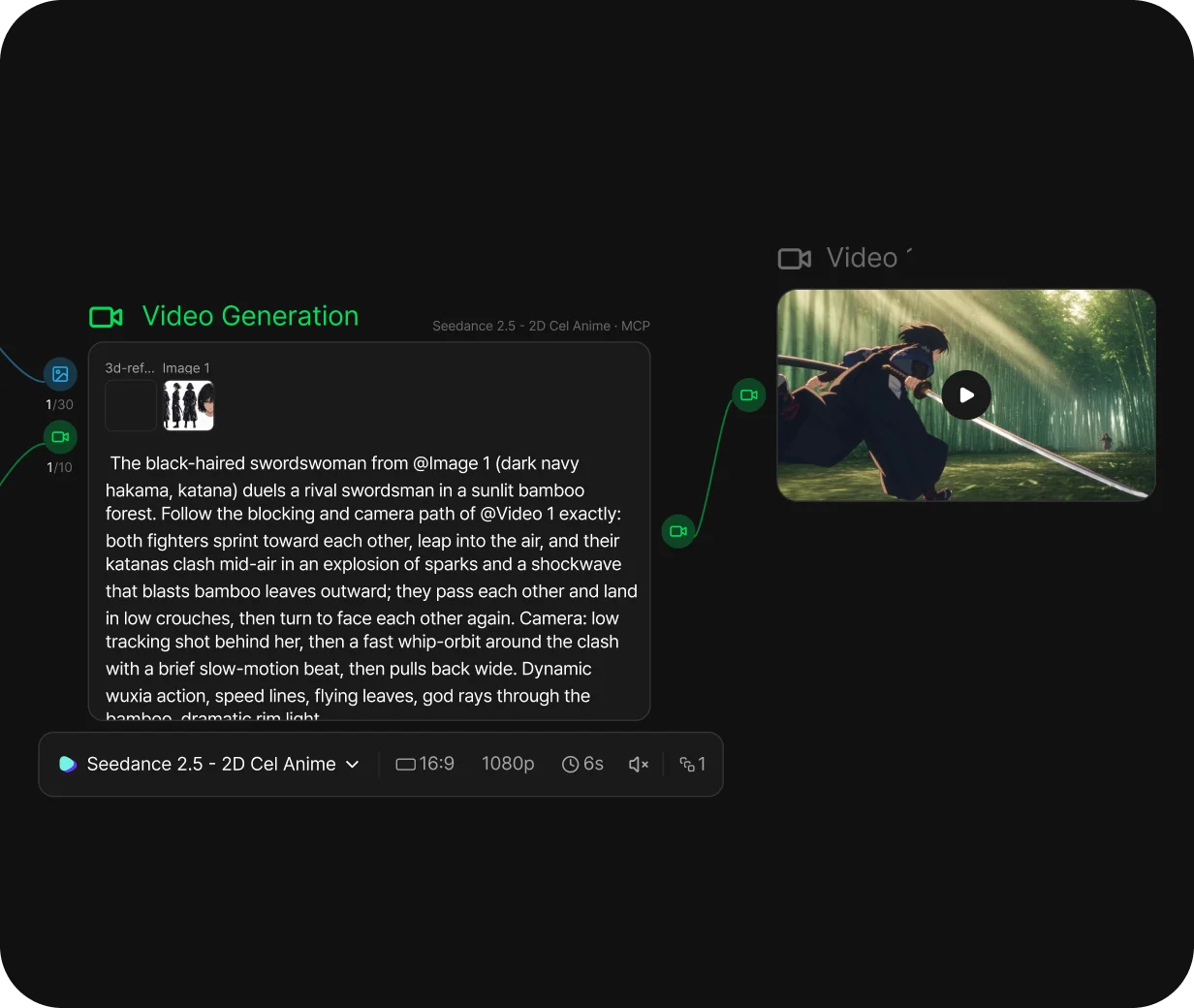
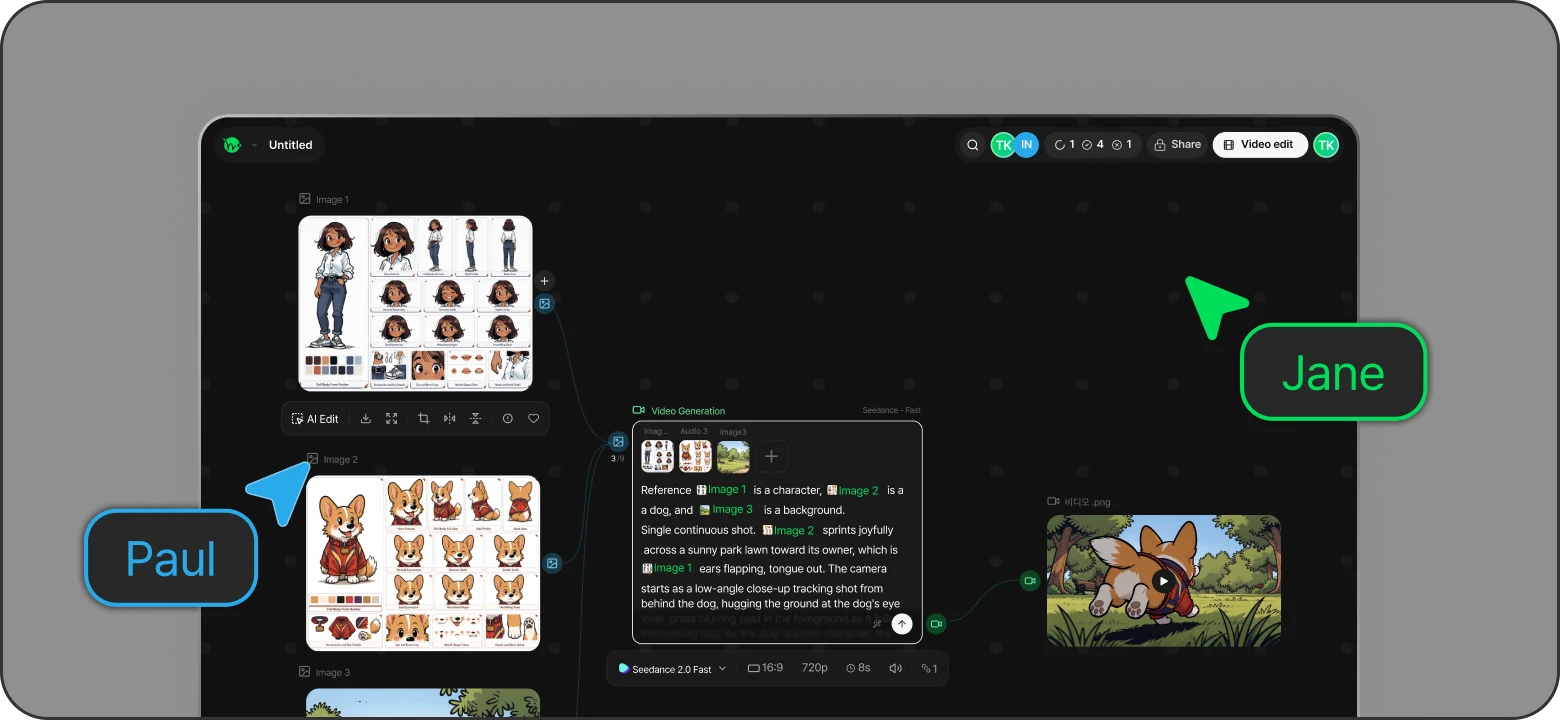
Build a canvas workflow through conversation

Ask the agent to place and connect text, references and generation nodes. Inspect which inputs produced each result and organize related nodes into groups. Continue working visually in Toonkit Canvas.

Connect Toonkit MCP
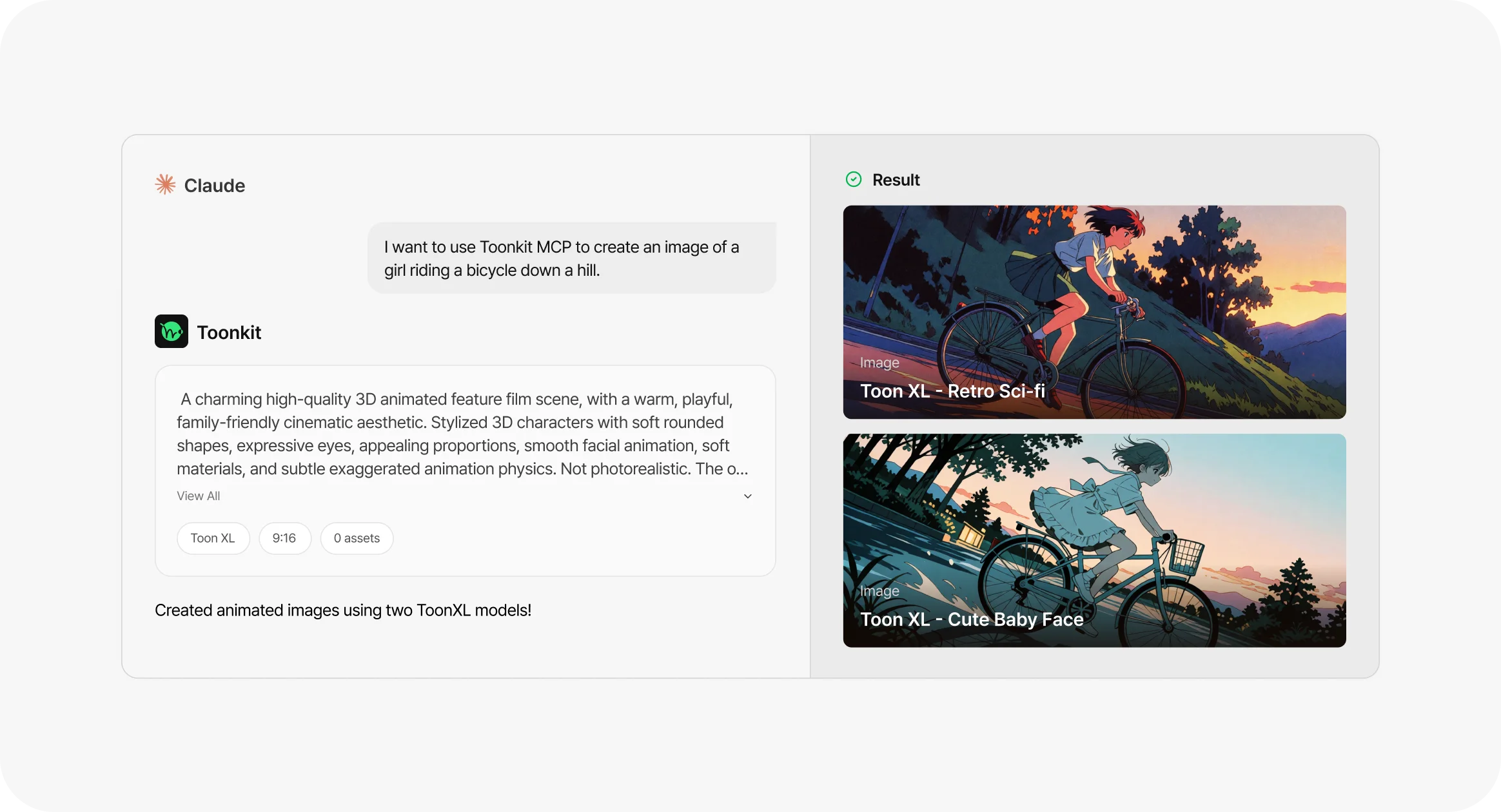
Image
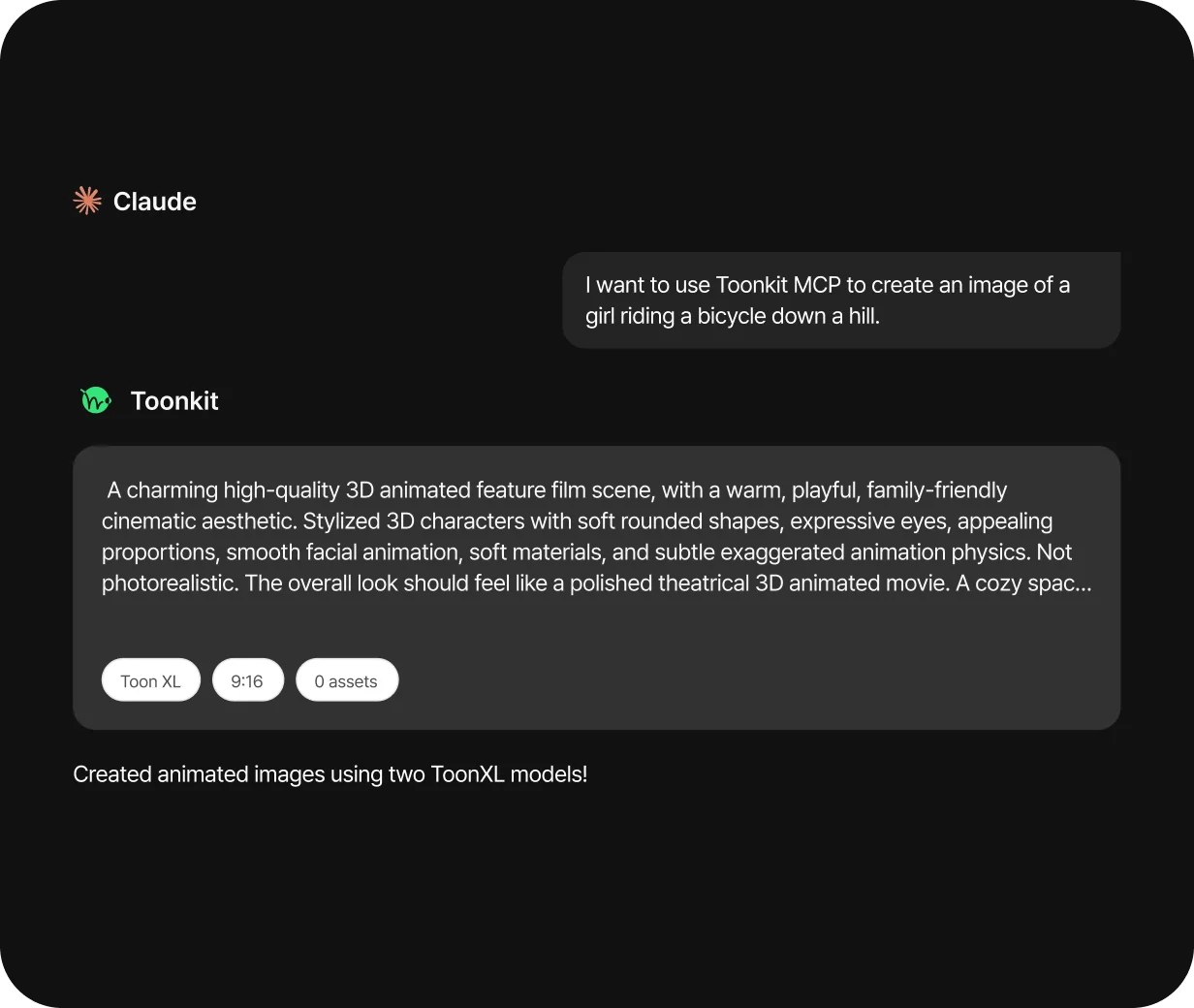
Claude


Toonkit

Toon XL9:160 assets

Created animated images using two ToonXL models!

Ready to create

Preparing the chat example.

Start a conversation and the results will appear here.

Prepare composition and camera with 3D Reference

Keep the canvas and 3D Reference editor open and request changes to subjects, poses and cameras. Review the scene and export an image or video for generation references. Prepare spatial relationships visually before generation.

Connect Toonkit MCP

Toonkit MCP — How to get started

STEP 1

Choose your AI tool

STEP 2

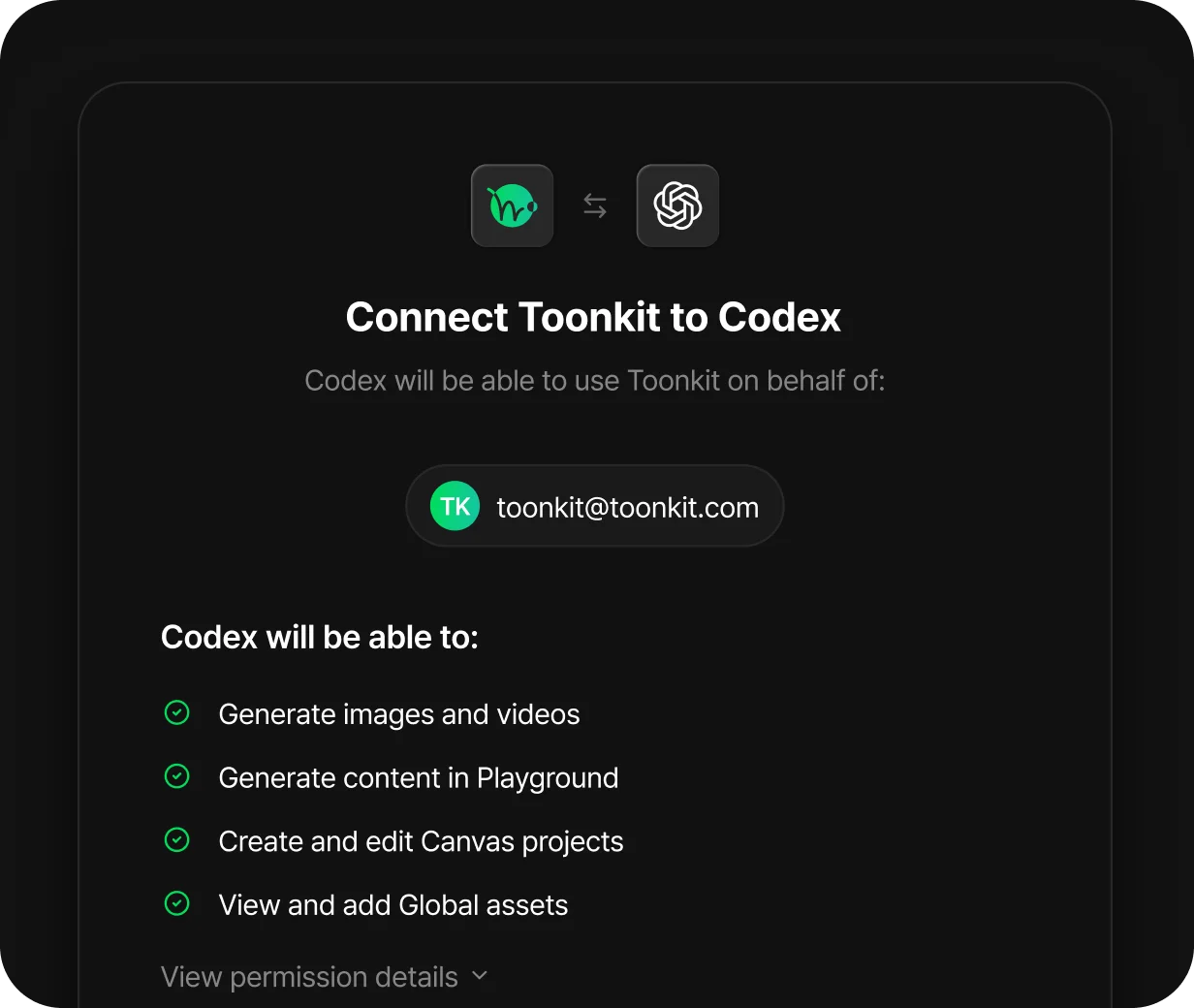
Install the plugin and connect your account

Follow the selected tool’s guide, install the plugin, sign in to Toonkit and approve access. You do not need to enter a separate API key. Explore related workflows: image to video and AI character creator.

Install the plugin and connect your account
STEP 3

Request a scene with references

Describe the scene and assets to use. Review supported inputs, generation options and credits before requesting creation. Explore related workflows: AI storyboard and text to video.

Request a scene with references
STEP 4

Review and edit in Toonkit

Review images and videos and request changes. Inspect inputs and outputs together on the canvas and reuse them for the next scene.

Review and edit in Toonkit

Why use Toonkit MCP for conversational AI creation?

Toonkit MCP pairs tool access with skills built around animation production. Planning, model selection, efficient information retrieval and result review are designed around the process of making your work. Explore related workflows: AI storyboard and text to video.

Interface for reviewing and editing the script and scene direction

Purpose-built skills for animation production

Toonkit’s curated production skills translate an idea into character, scene and video tasks. They guide reference preparation, generation order and result review, helping you progress toward an animation without designing every tool interaction from scratch. Explore related workflows: AI storyboard and text to video.

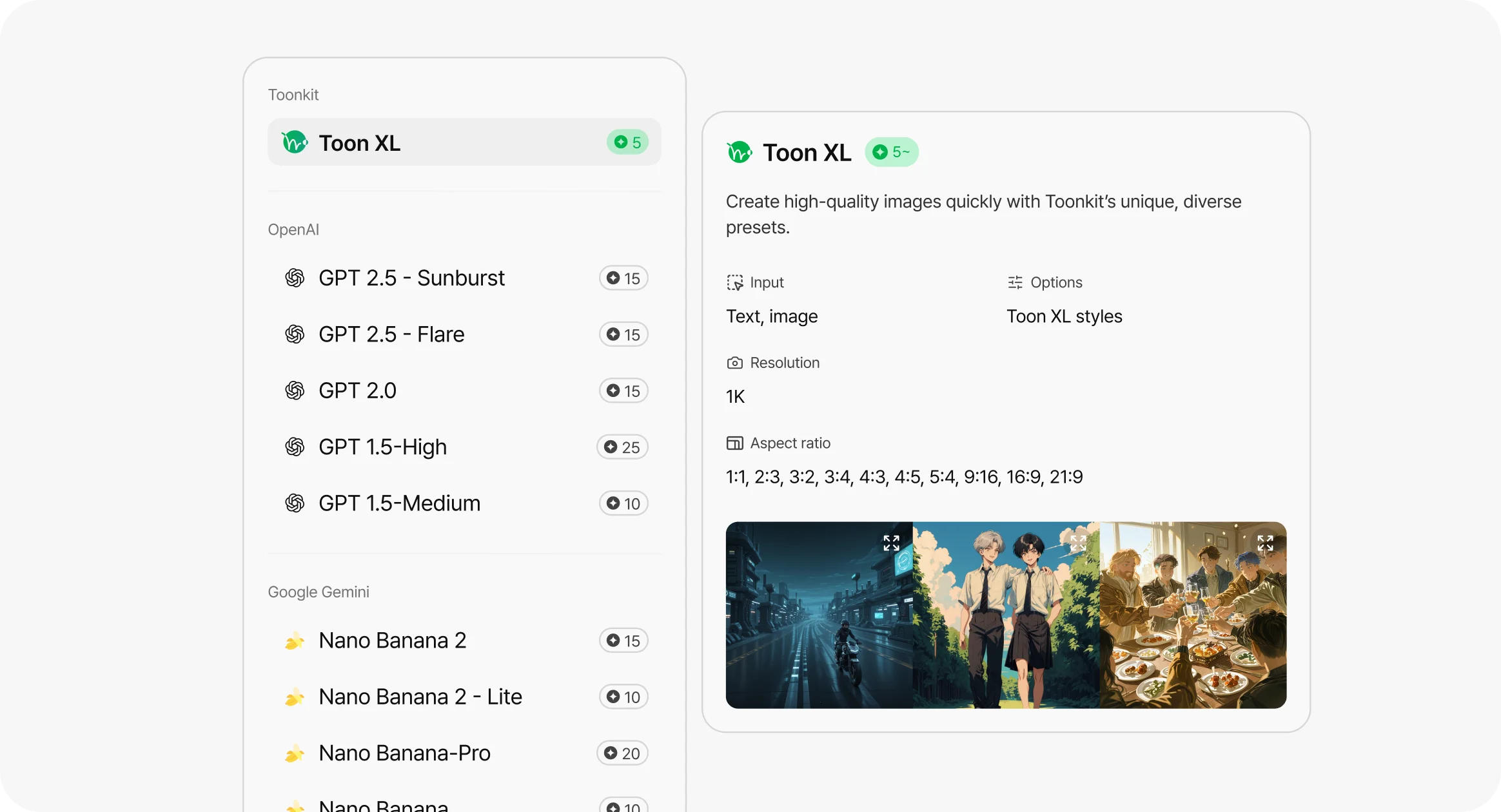
Menu for choosing a video generation model

Task-aware model selection and token efficiency

The skills guide model, resolution and option choices around your scene and references, with reasons for the selection. They retrieve only relevant candidate-model information and focus result inspection where needed, reducing unnecessary context and repeated checks. Agent token efficiency and generation credits are handled separately. Explore related workflows: AI storyboard and text to video.

Toonkit MCP

Move between chat and canvas

Request workflow changes through MCP and inspect the results on the canvas. Connected inputs and outputs help you decide what to change next.

Direct 3D staging through conversation before generation

Ask your connected agent to move a subject or lower the camera. Toonkit MCP supports subject placement, poses, camera adjustments and image or video exports in 3D Reference. Open the canvas and 3D editor to review the scene, then use the exported previz as a reference for AI video generation.

FAQ

What can you do with Toonkit MCP?

MCP is a standard for connecting AI agents to external tools. Toonkit MCP lets an agent use your connected account’s image, video and voice generation and canvas tools through conversation. Describe which character traits to preserve and what to change, or ask the agent to connect references and generation nodes. Review and edit results in Toonkit. Installation commands and account authentication are covered in the connection guide.

Which AI tools can connect to MCP?

The connection guide covers the Toonkit plugin for Codex and Claude Code and account authentication. Check the MCP connection page for each tool’s commands. Explore related workflows: image to video and AI character creator.

Do all models accept the same references?

No. Image, video and audio support, counts, duration and resolution vary by model. Check the selected model before connecting inputs. Explore related workflows: image to video and AI character creator.

How is generation charged?

Generation uses Toonkit credits. The amount depends on the model and options. MCP uses the credits in your existing Toonkit account. Explore related workflows: image to video and AI character creator.

Do I send raw 3D files to the generation model?

Prepare the scene in 3D Reference, then use an exported image or video as the reference. Keep the canvas and 3D editor open when using MCP and review the scene.

Explore more Toonkit tools

Canvas connecting reference images and generation nodes

Toonkit Canvas: connect nodes to build AI image and video workflows

Bring text, character images, video and voice onto one canvas. Connect references to generation nodes, compare results and prepare composition with 3D Dummy in a visual AI animation workspace.

Learn more
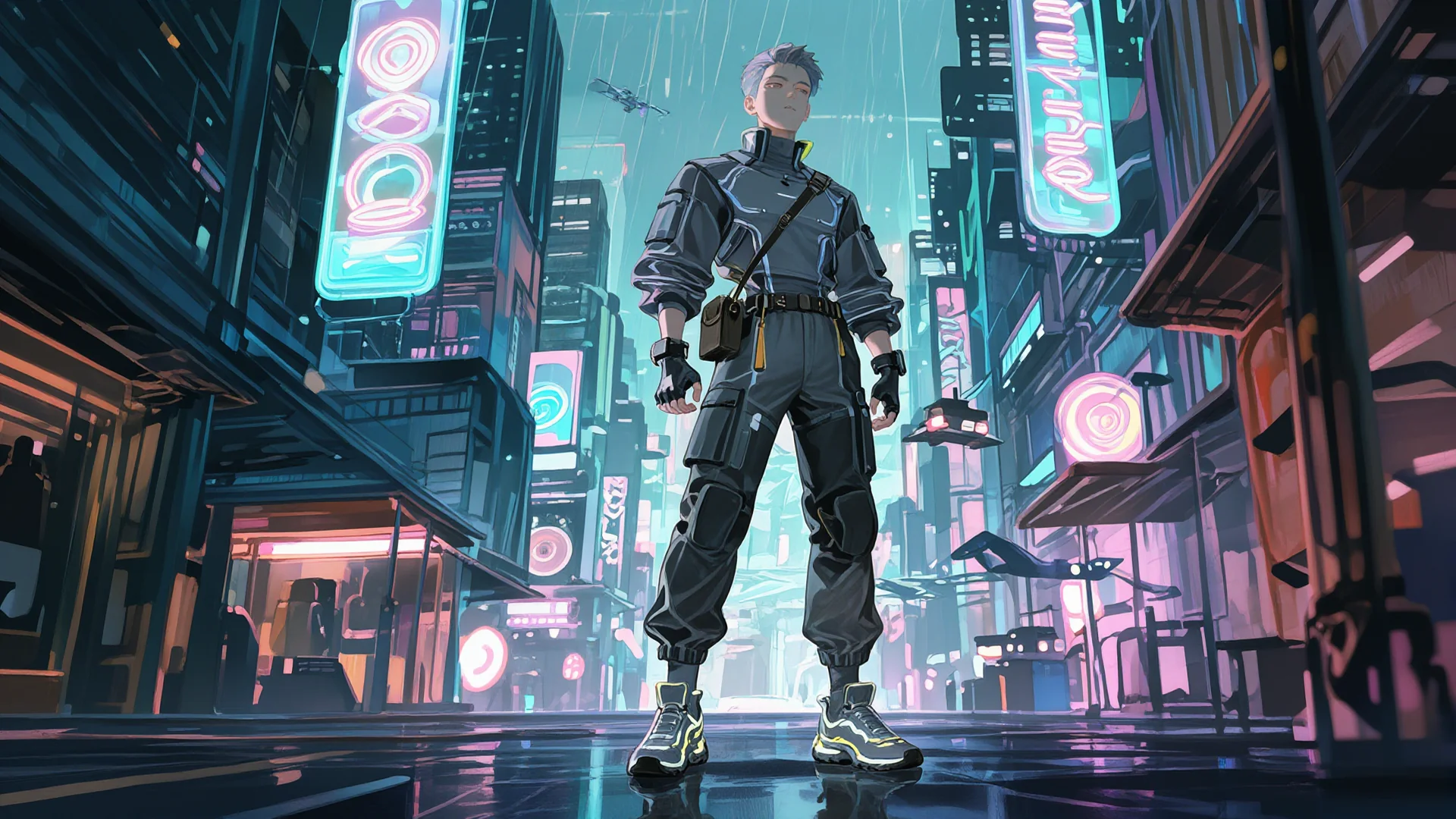
Animated character standing on a neon-lit street

AI Animation Generator

Turn an idea into a scene-by-scene storyboard and prepare characters and backgrounds for AI animation. Develop image shots into video with motion and camera direction, compare results and regenerate the scenes that need work. Edit shot order and duration to bring the story together. Explore related workflows: AI storyboard and text to video.

Learn more
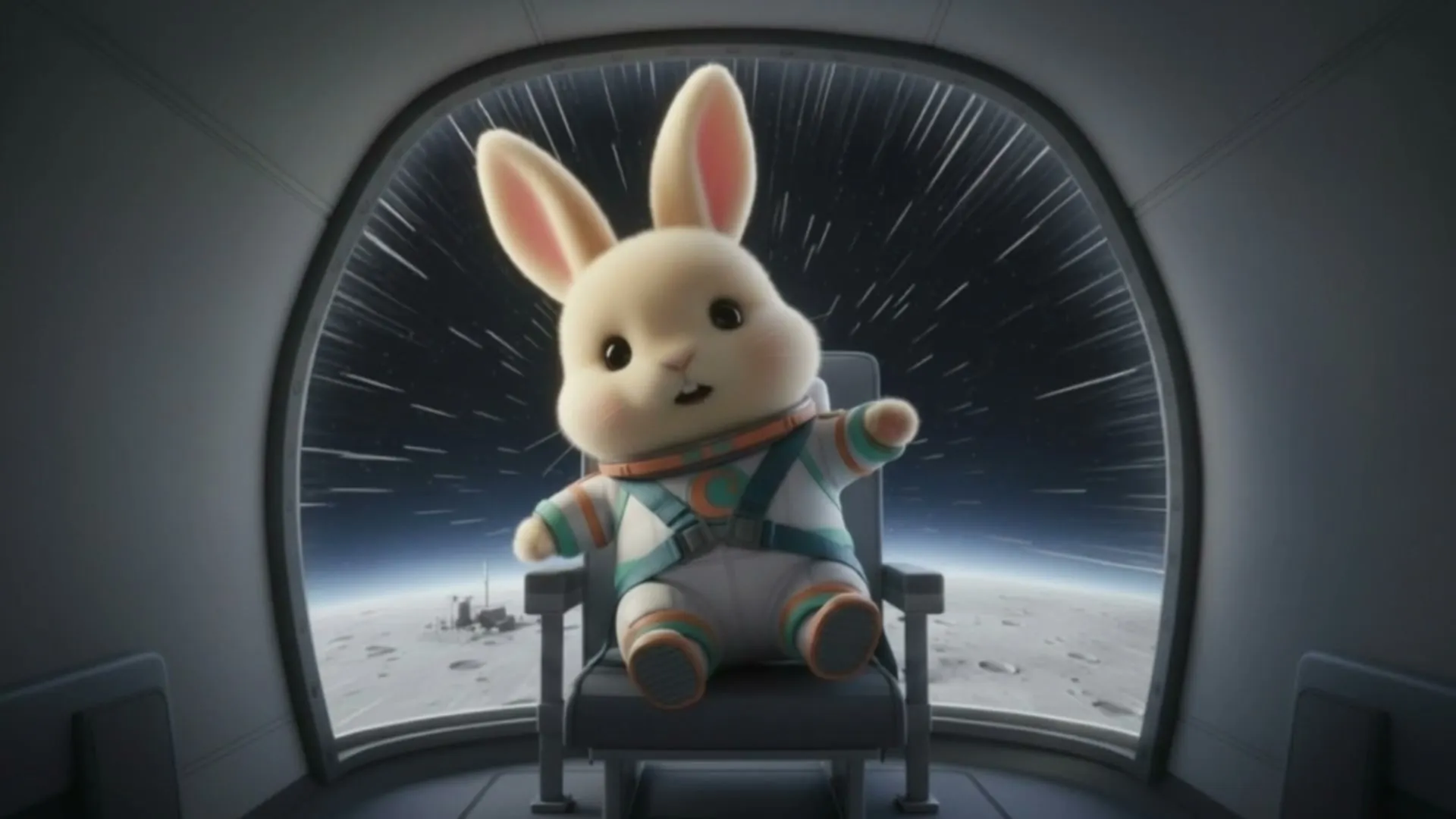
Rabbit character sitting in a spaceship cockpit

AI Character Creator

Describe appearance, clothing, expression and style to create an AI character for your story. Use a selected result to explore poses and scenes, and organize different views in a character sheet. Carry your character images into storyboards and video generation as references. Explore related workflows: AI storyboard and text to video.

Learn more
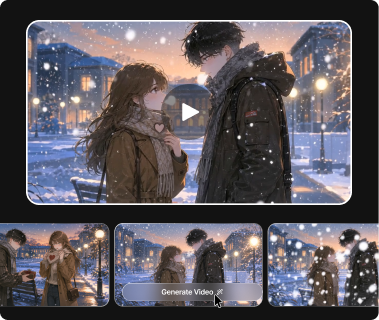
Snowy city scene and generated video candidates

Text to Video AI

Turn a written scene into footage with Text to video. Describe subjects, location, time of day and motion, then add camera direction to clarify the result you want. Choose a model, duration and aspect ratio, compare outputs and refine the prompt to create shots ready for your next edit. Explore related workflows: AI storyboard and text to video.

Learn more