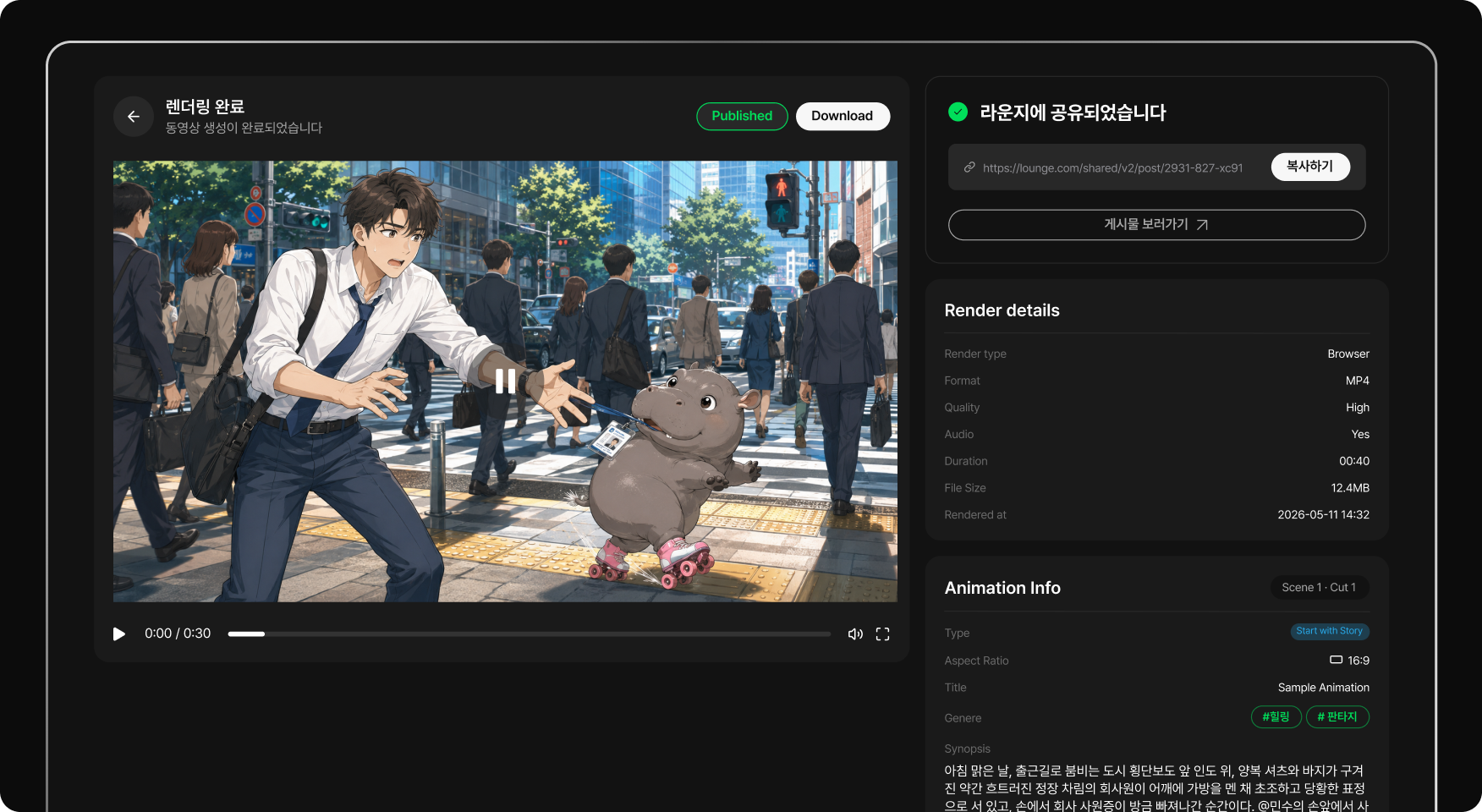
Turn your manga into animation

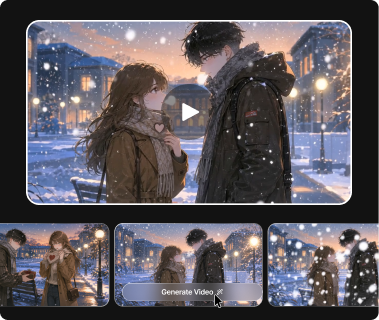
Bring scenes from your own manga or webtoon to life and turn a story on the page into AI anime. Prepare the panels and character images you want to animate in Toonkit, then describe the action and direction for each shot. Arrange and edit the clips around your original story to create anything from an animated highlight to a video introducing your work.

Key benefits

Start with your drawings

Use your manga, comic or webtoon panels to prepare the shots. Preparing an individual scene instead of a whole page makes the intended framing easier to describe. Add the panel to Toonkit and specify which elements should move in your prompt.

One movement per scene

Decide what moves and what stays still to keep the drawing readable. Generate a shot around one action, such as a glance or hair moving in the wind. Review the original expression and silhouette before choosing the clip for your sequence.

Your storytelling rhythm

Adjust shot order and duration in the edit to bring the story to life. Choose the sections of each video to use and add an audio track in the editor. Vary the length of dialogue moments and quiet pauses to translate the comic’s pacing into motion.

Prepare the panels you want to animate

Export or crop drawings into separate images. If you want a sequence without embedded text, prepare speech bubbles and captions accordingly before generation. Check that the panel’s composition works with your intended video aspect ratio. Separating panels and removing speech bubbles are preparation steps, not an automatic whole-comic import feature.

Turn an image into an animated shot

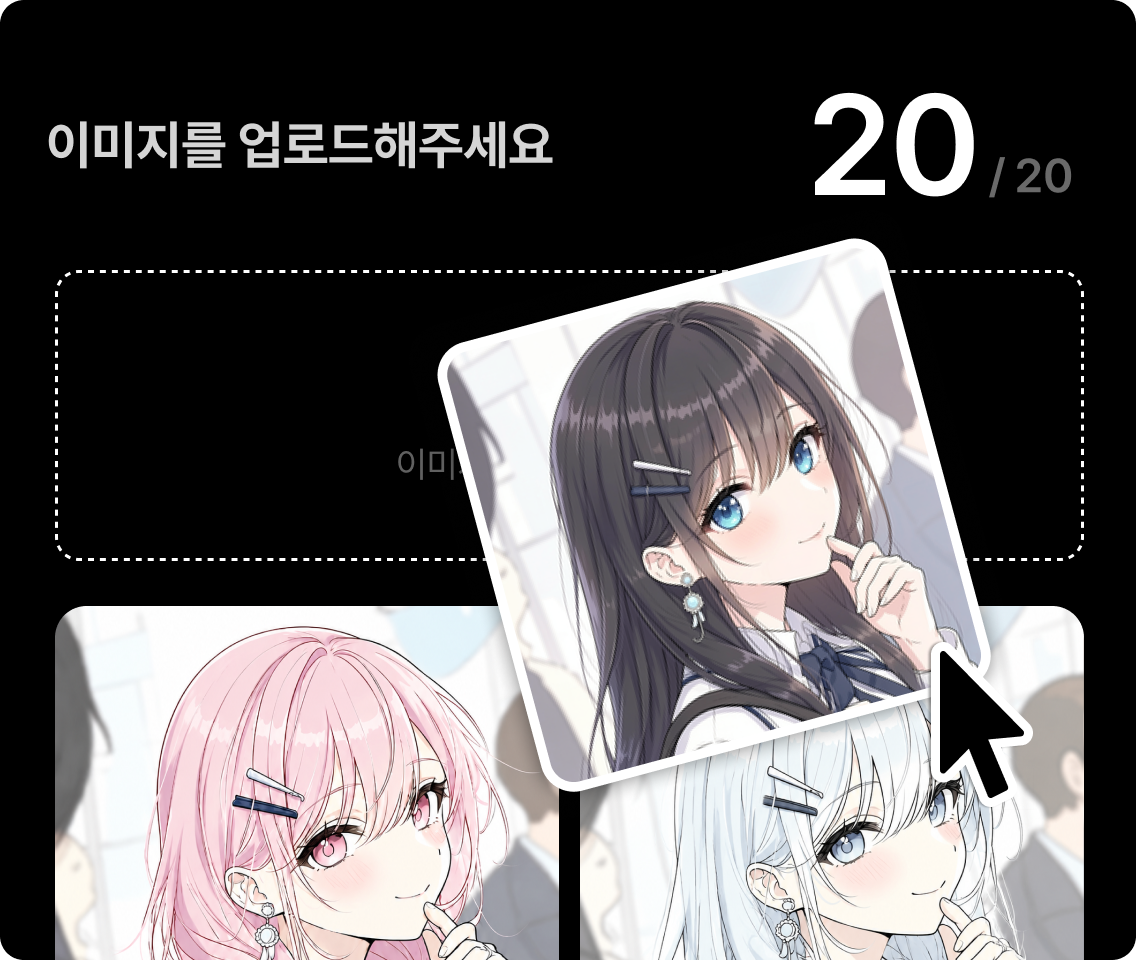
Upload a panel and describe a specific movement: a glance, hair in the wind or a gentle camera move. Start simple before trying complex action. Check the model’s available aspect ratios and durations, then start with a short shot. Compare the opening and closing frames to select results that preserve the drawing and face.

Animate an image
Uploading a source image to animate

Keep visual references across panels

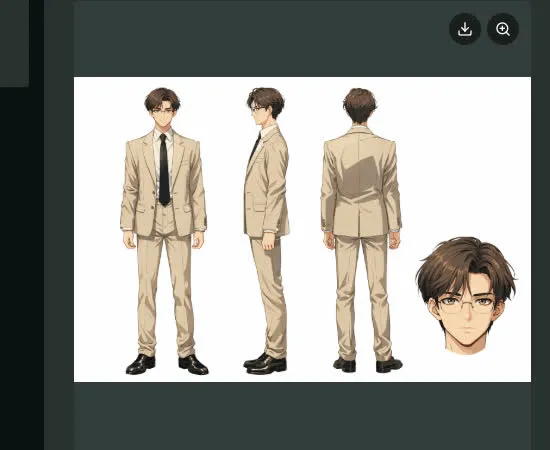
Gather character and location references. Reuse them where the model supports it, and check faces, accessories and backgrounds at each cut. When showing a location from a new angle, also compare lighting and recurring props. If you use reference-to-video, check the selected model’s image input requirements.

Character reference views

Find your story’s rhythm in the edit

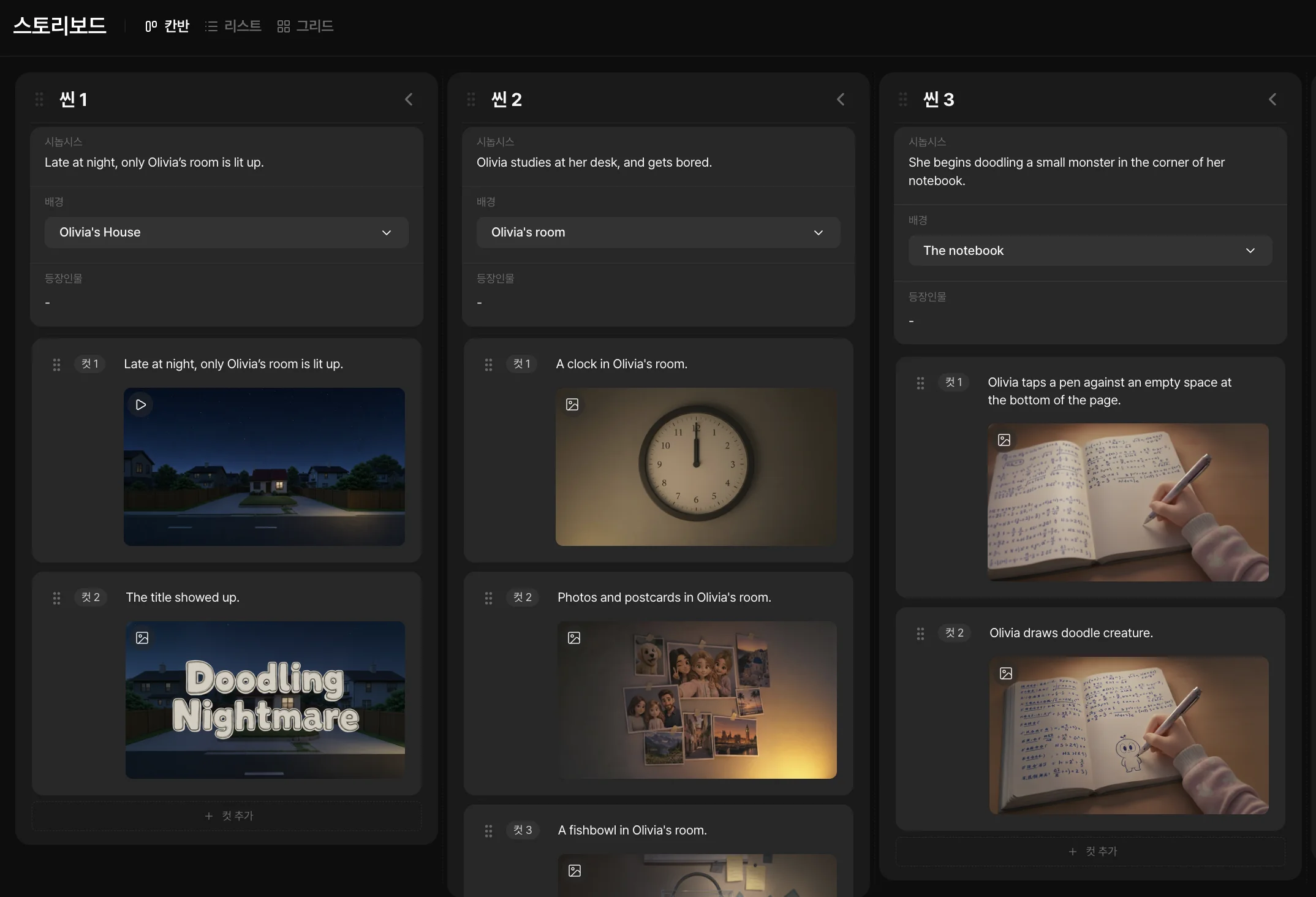
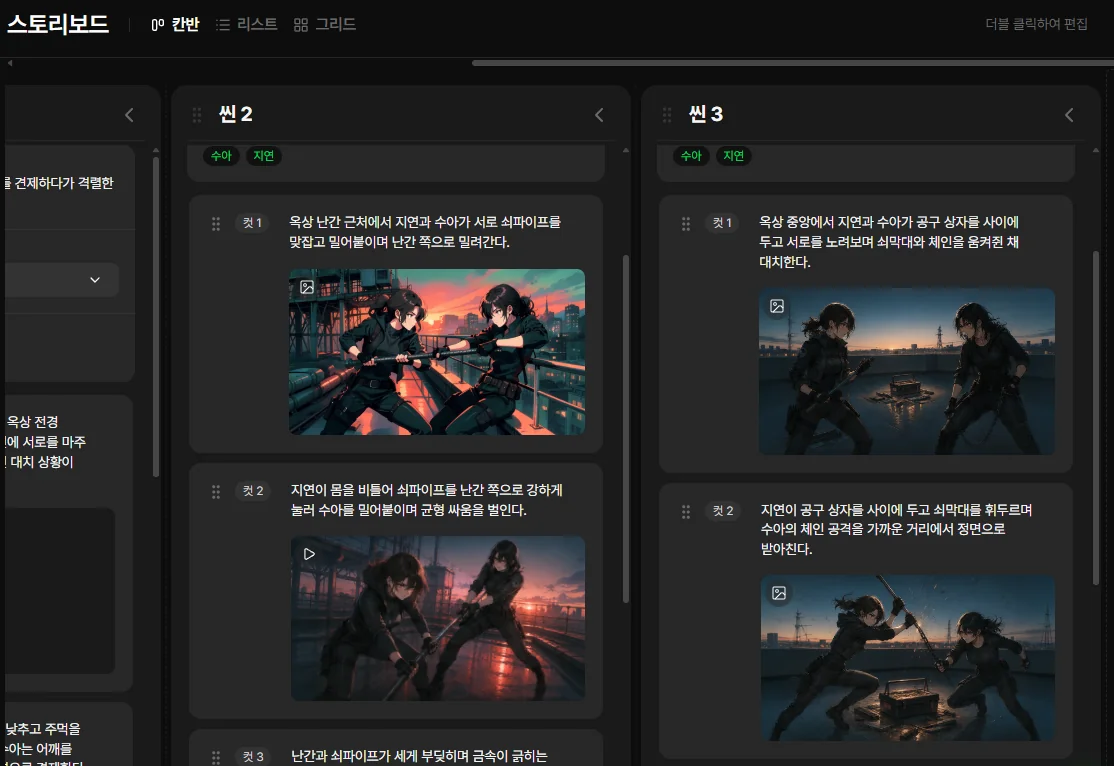
Arrange shots in the storyboard and adjust their duration in the editor. Add your audio and check that the transitions tell the story in your drawings. Place video and audio on the timeline and refine the beginning and end of each clip. Preview the result to make sure important expressions and story transitions remain readable.

Start a storyboard from images
A storyboard with arranged scenes

From the first panel to an animated sequence

  1. Preparing source panels
    01

    Choose a short sequence

    Prepare a few panels you can use, with a clear beginning and ending. Prepare separate images and write the main action for each panel in one sentence. Collect character and location references that will recur throughout the sequence.

  2. Generating motion from a still image
    02

    Animate the shots

    Describe each panel’s movement and select takes that preserve the drawing. Add a panel to image-to-video and describe its action and camera movement. Check the model’s duration and framing options, then choose a result that fits the original composition.

  3. Exporting an edited video
    03

    Assemble and export

    Adjust timing, music and transitions before exporting. Play adjacent clips in the editor, adjust the sections you use and add the audio you need. Check faces and key information at the publishing aspect ratio before exporting.

Frequently asked questions

Does Toonkit convert an entire manga in one click?
This workflow involves preparing panels, generating shots and editing them together. It does not promise automatic conversion of a whole volume from one file.
Can I use comics or webtoons?
Yes. Prepare the panels as images and choose framing and a format that suit the sequence.
What should I do with speech bubbles?
Remove them from the source image if you do not want them animated. Text embedded in images may distort during generation.
Can I animate black-and-white drawings?
You can start with a monochrome drawing and describe the desired look. Review lines, contrast and detail afterward.
What movement should I try first?
A gentle camera move, a glance or a breeze lets you test a panel without too many simultaneous changes.
How is the sequence’s cost calculated?
It depends on generated shots, models, settings and retries. The number of manga pages alone does not determine the cost; check credits before generating.

Bring your first sequence to life.

A few panels, a clear movement and your sense of story.

ToonkitToonkit

© 2026 Toonkit. All rights reserved.

Innerverz Inc. | CEO : Junghyuk Im | Business Registration : 615-88-01959 | Mail-order Sales Registration : 2023-Daejeon Yuseong-1774

Address : 3212, 13-8, Eungubinnam-ro 33beon-gil, Yuseong-gu, Daejeon, Korea | Tel : 070-4102-3345 | CS : cs@toonkit.io