

Start with a conversation
Describe the character, setting, framing and movement you want. Your connected AI agent uses Toonkit’s generation tools to turn the idea into images and videos.
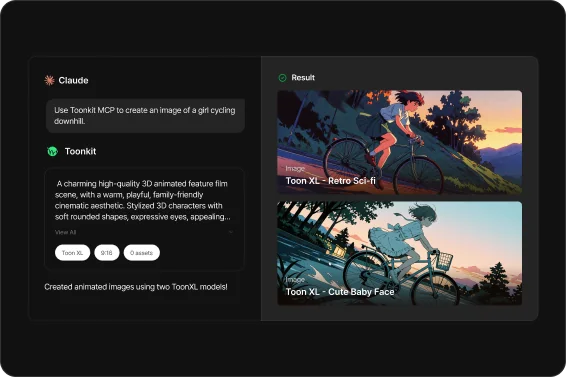
Describe the characters and scenes you imagine and bring them to life with Toonkit Plugin. Connect Toonkit to Codex or Claude Code to generate images through conversation and use existing assets as references for your next video scene. From shaping an idea to reviewing results and refining them in Toonkit, keep creating in a conversation that builds on your work.
Describe the character, setting, framing and movement you want. Your connected AI agent uses Toonkit’s generation tools to turn the idea into images and videos.

Find characters and images saved in Toonkit and use them as references. Explain what to keep and what to change as you develop your existing results into new scenes.

Use your existing Toonkit credits without a separate MCP service fee. Generation costs depend on the model and options, so review your settings as you plan each task.
Describe your character’s appearance, the mood of the setting and the composition you have in mind. Generate images with Toonkit Plugin, then review the results and explain which details to keep or revise. Explore character designs, webtoon panels and concept artwork as you develop your idea into a visible scene.
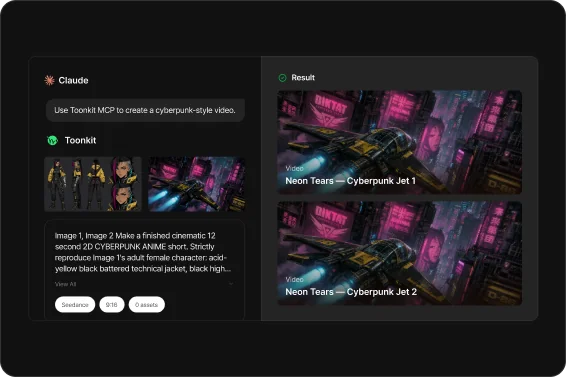
Use an image you prepared or an asset saved in Toonkit as a reference for an AI video. Describe the action, camera framing and atmosphere, then use the inputs and generation options supported by your chosen model. Compare results and refine shots for character introductions, short animations or a teaser for your project.
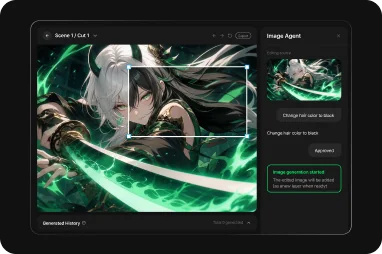
Alongside image and video generation, Toonkit Plugin provides tools for continuing work on Canvas. Request a task in conversation, review the results and use your generated assets in Toonkit to compose scenes and continue editing. Move between chat and the creation workspace as you develop a concept into a story told across several shots.
Choose Codex or Claude Code in the connection guide and run the installation commands provided.
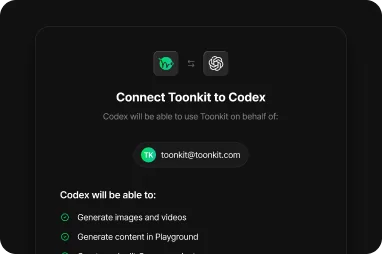
Follow your tool’s authentication instructions, sign in to Toonkit in your browser and approve access.
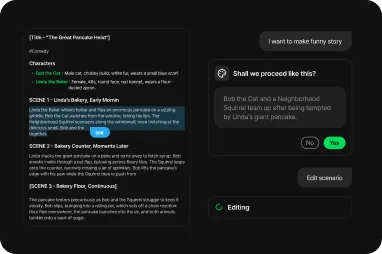
Describe a scene and its references, review the generated results and continue with your next task.
Connect Codex or Claude Code and start with your first image or video.