AI animation prompt examples: describe actions, camera movement and direction precisely
Compare prompts and videos from actual running, combat and low-angle examples. Separate character actions, camera movements and visual effects, then adapt short instructions to your own scenes. Explore related workflows: AI storyboard and text to video.
By uploading an image or video, you agree to Toonkit’s Terms of Use and Privacy Policy and confirm that you are 18 years of age or older.
Add action, camera and effects in order.
These English prompts and examples come from existing Toonkit articles. Models and input assets affect results, so adapt the prompts to your own scenes. Explore related workflows: AI storyboard and text to video. Connect text, reference images and generation nodes in Toonkit Canvas, and continue your creative workflow through conversation in AI tools connected to Toonkit MCP.
Start with one action
This basic example specifies only a person and an action. Review the result to identify whether speed, camera work or expression needs more detail. Explore related workflows: image to video and AI character creator.
Example prompt
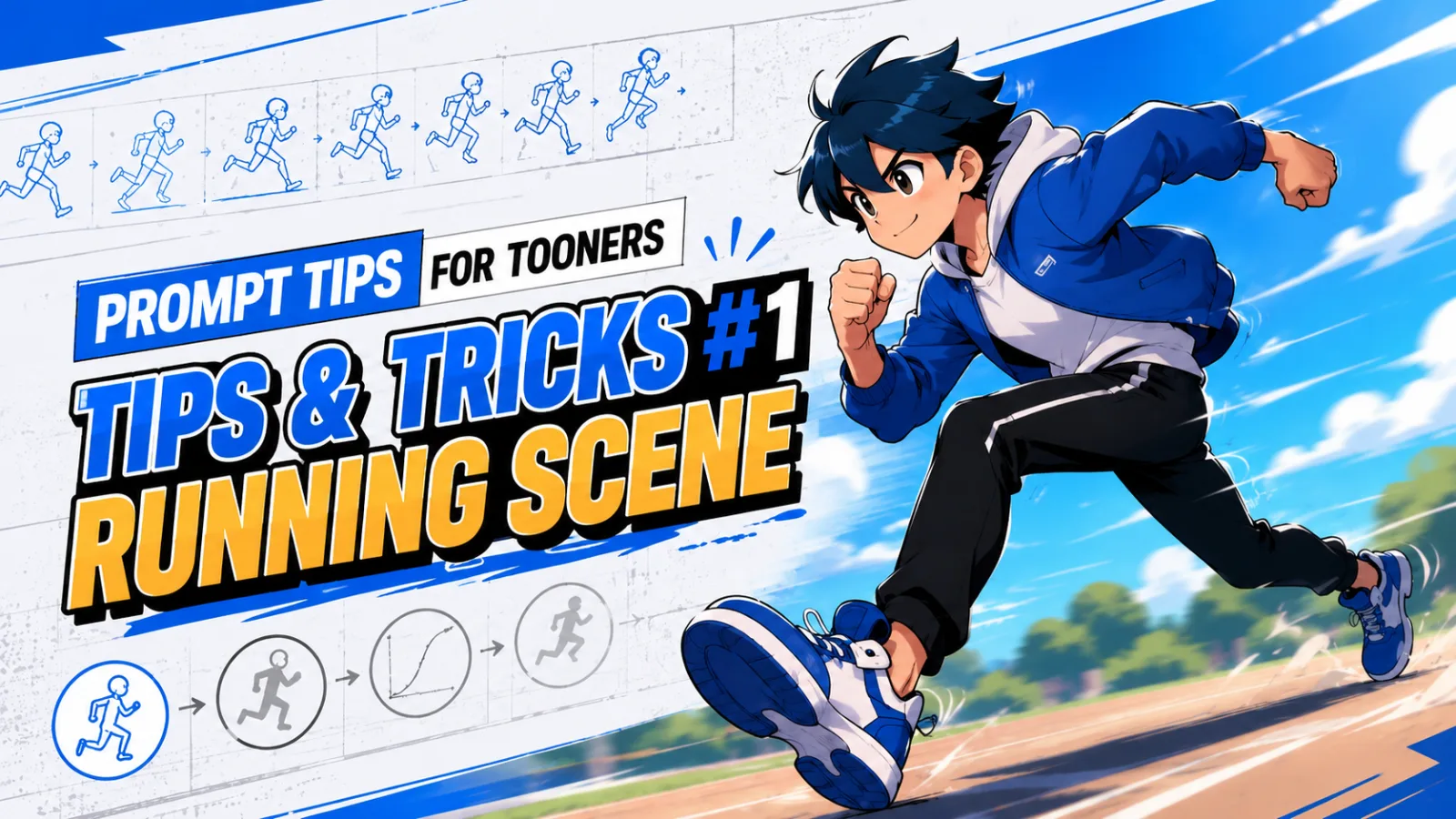
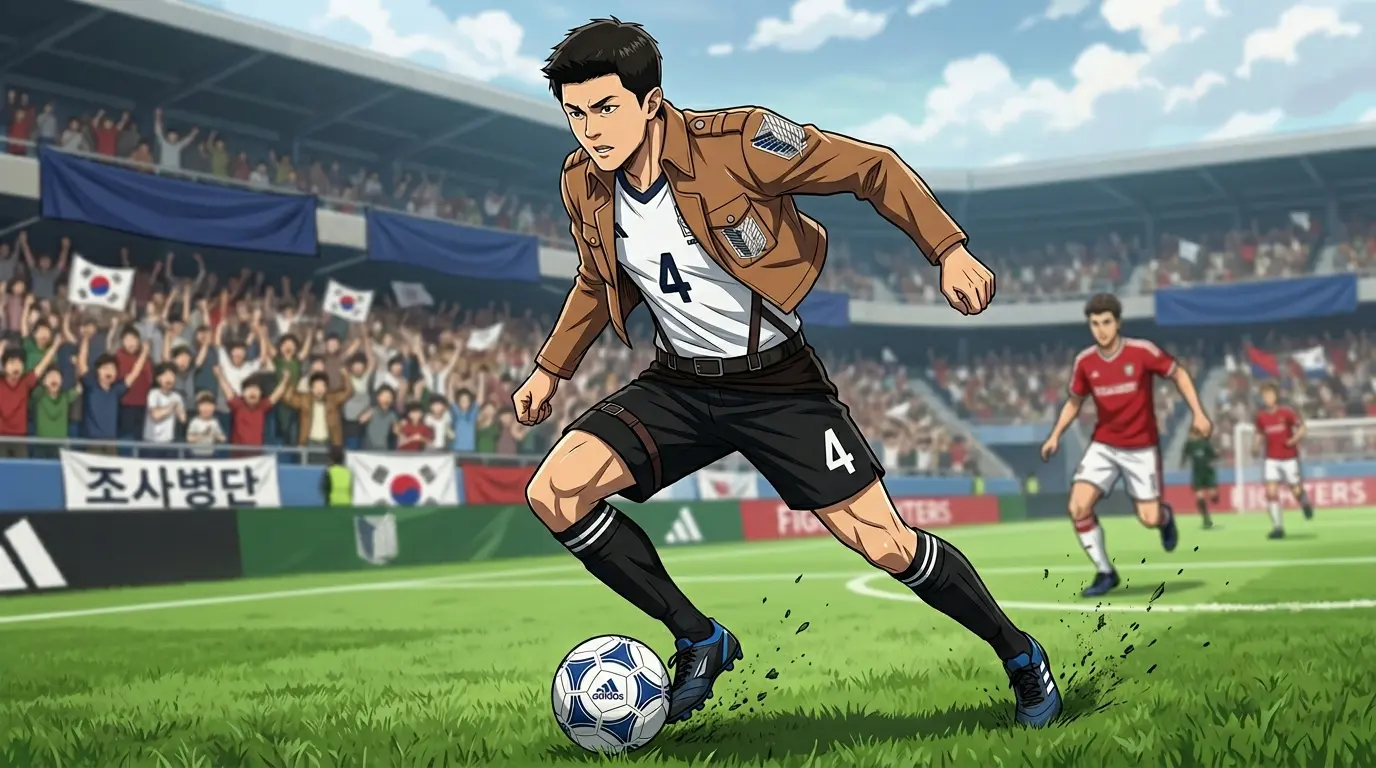
Create a video of James running.
Add speed and camera work to a running scene
This example details the start, low camera, tracking, wind and background motion. Before adding everything at once, consider whether each instruction supports the scene. Explore related workflows: AI storyboard and text to video.
Example prompt
James explodes into a full sprint with powerful acceleration.

The camera starts close to the ground in a low-angle shot and rapidly pushes forward while tracking James.

As he takes his first step, apply a strong camera shake and motion blur. Wind rushes past him while the background streaks by to enhance the feeling of speed.

Keep the camera locked on James throughout the sequence to create a cinematic action shot.
Connect attacks and reactions in combat
Instead of simply saying “fight,” this example describes approach, attack, dodge and counterattack. It also directs the camera to follow the characters and explains how to show impact. Explore related workflows: image to video and AI character creator.
Example prompt
James and Alex engage in an intense, fast-paced one-on-one fight.

James suddenly closes the distance and launches a powerful attack. Alex narrowly twists his body to dodge it, then immediately counters with a flashy series of attacks.

The two characters continuously exchange attacks, dodges, and counterattacks without breaking the flow of combat.

The camera rapidly tracks both characters, moving dynamically to follow the flow of the fight.

When a powerful attack lands, add a brief camera shake and motion blur, and show the opponent's body naturally being pushed backward by the impact.

Create a cinematic action sequence filled with fast exchanges and flashy techniques.
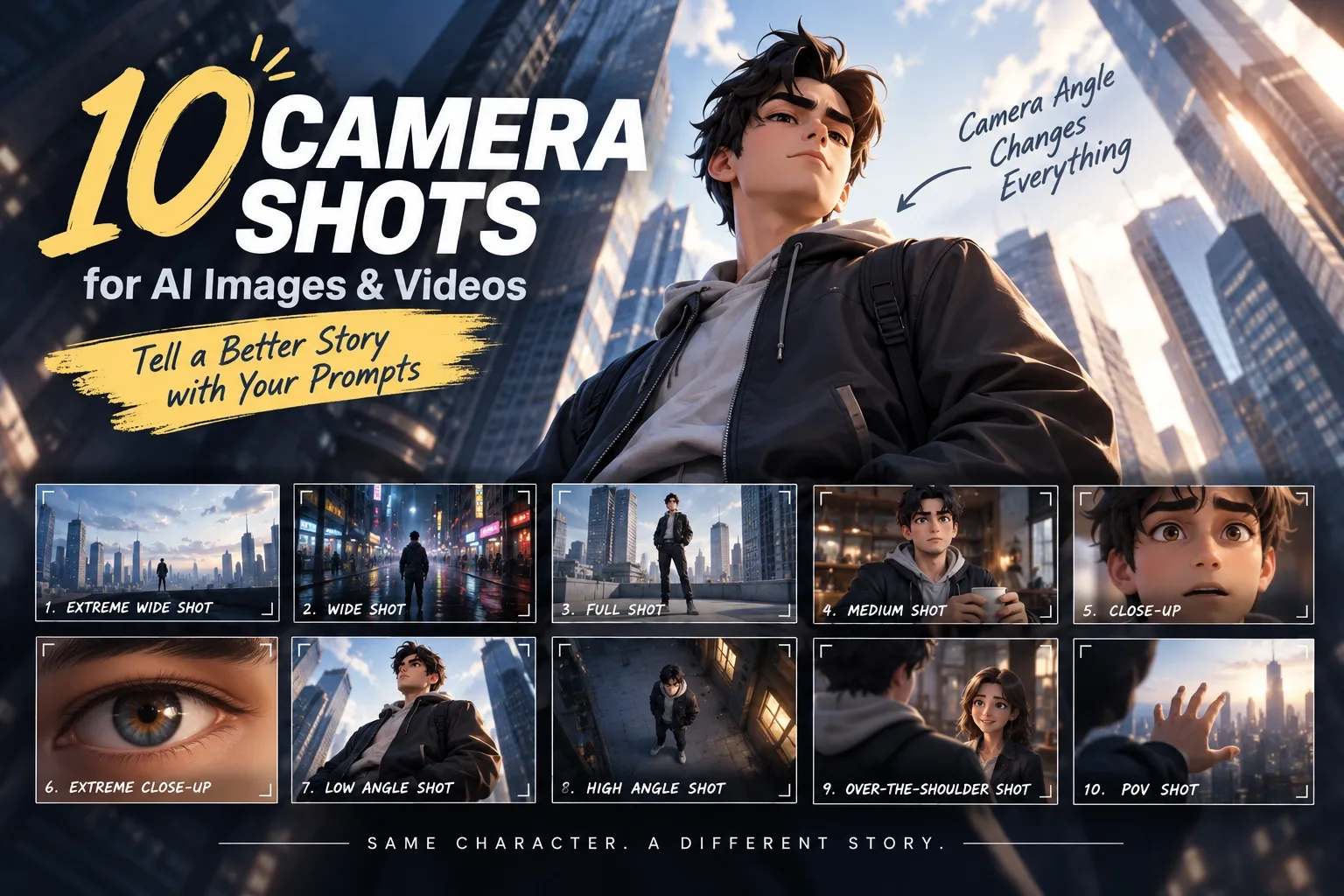
Even a standing pose changes with the angle
This example specifies a low-angle view that frames both person and buildings. Beyond naming the angle, it describes the impression the composition should create. Explore related workflows: image to video and AI character creator.
Example prompt
James stands alone between massive city buildings.

The camera is positioned below James, looking up at him in a Low Angle Shot.

Frame James's upper body together with the towering buildings behind him, making him appear more powerful and intimidating.

Create a strong, cinematic atmosphere, like the first appearance of a main character in a movie.
AI animation prompt examples — 3 steps
STEP 1
Choose the character and action
Write who does what in one sentence. Do more than change the example's name: check that the action fits your input image. Explore related workflows: image to video and AI character creator.
STEP 2
Add camera direction and the intended impression
Specify where the camera is, what it shows and how it moves. Try speed, shake and lighting in the order the scene needs them. Explore related workflows: AI storyboard and text to video.
STEP 3
Compare results and adjust one thing at a time
Check whether the requested action appears and the character stays consistent. Change one condition at a time and record revisions and results for comparison. Explore related workflows: image to video and AI character creator.
Why use Toonkit for working with AI animation prompts?
A good prompt organizes the instructions a scene needs rather than maximizing length. Use examples and results to separate action from camera direction and change one condition at a time. Explore related workflows: AI storyboard and text to video.
Describe motion in concrete terms
Clarify who does what and where, then describe the motion briefly. Break it into visible elements such as running direction or body orientation to make comparisons easier. Explore related workflows: image to video and AI character creator.
Organize direction for each scene
Review the script and shots to decide the roles of character motion and camera. Avoid packing everything into one instruction; choose wording that serves the scene. Explore related workflows: AI storyboard and text to video.
Start short, then add conditions
Enter the minimum needed, review the result and add details in order. Limiting changes makes it easier to understand which words affected generation. Explore related workflows: image to video and AI character creator.
Use the result to refine the next instruction
Compare generated shots and describe unexpected motion or composition precisely. Revise instructions for the model and scene instead of repeating the same example unchanged. Explore related workflows: AI storyboard and text to video.
The English prompts come from existing Toonkit articles, and the corresponding videos are reused from those articles. The same results are not guaranteed under today's generation conditions. Explore related workflows: image to video and AI character creator.
Can I use prompts in my own language?
You can try describing your intent in your own language. Published examples remain in English to preserve their connection to the original articles and videos. Models interpret prompts differently, so start with short instructions and check results. Explore related workflows: image to video and AI character creator.
Are longer, more detailed prompts always better?
Not necessarily. Conflicting instructions or too many actions can obscure your intent. Start with one action, then add necessary camera directions and effects. Explore related workflows: image to video and AI character creator.
What if the face or clothing changes?
Review reference images and shared settings as well as the text. See maintaining character consistency for a detailed workflow.